To integartion carconnect/cardpointe to CMS Max, please follow the steps below.
- Step 1: Log into your cardconnect account.
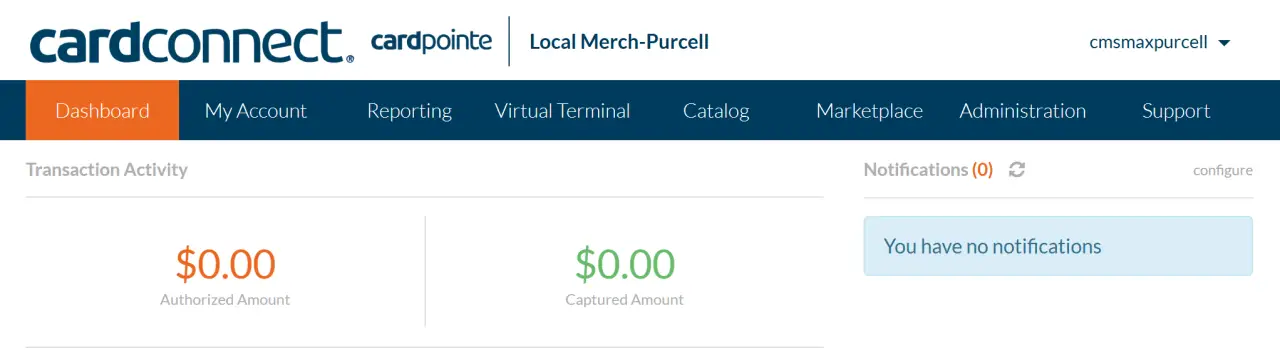
- Step 2: Click the Adminstration tab
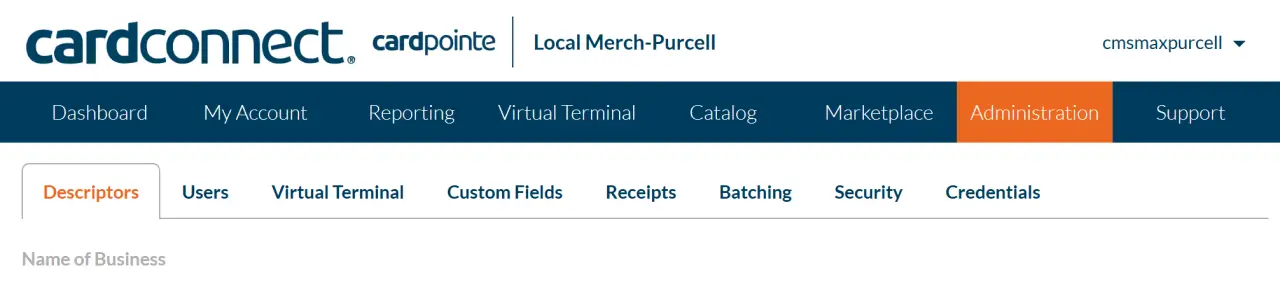
- Step 3: Click on the Credentials tab. Please note: If you do not see this tab, contact your rep to have them enable the tab and reference CMS Max.
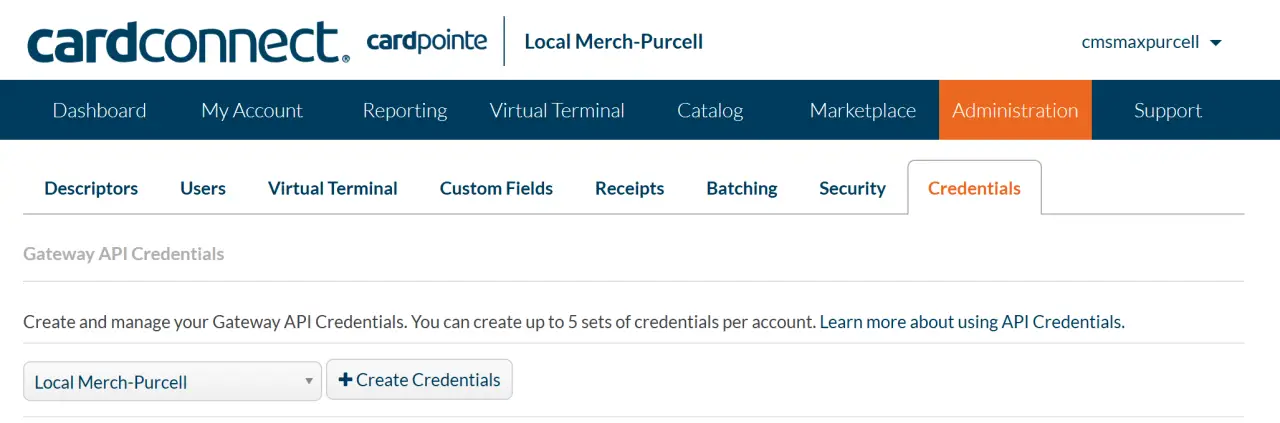
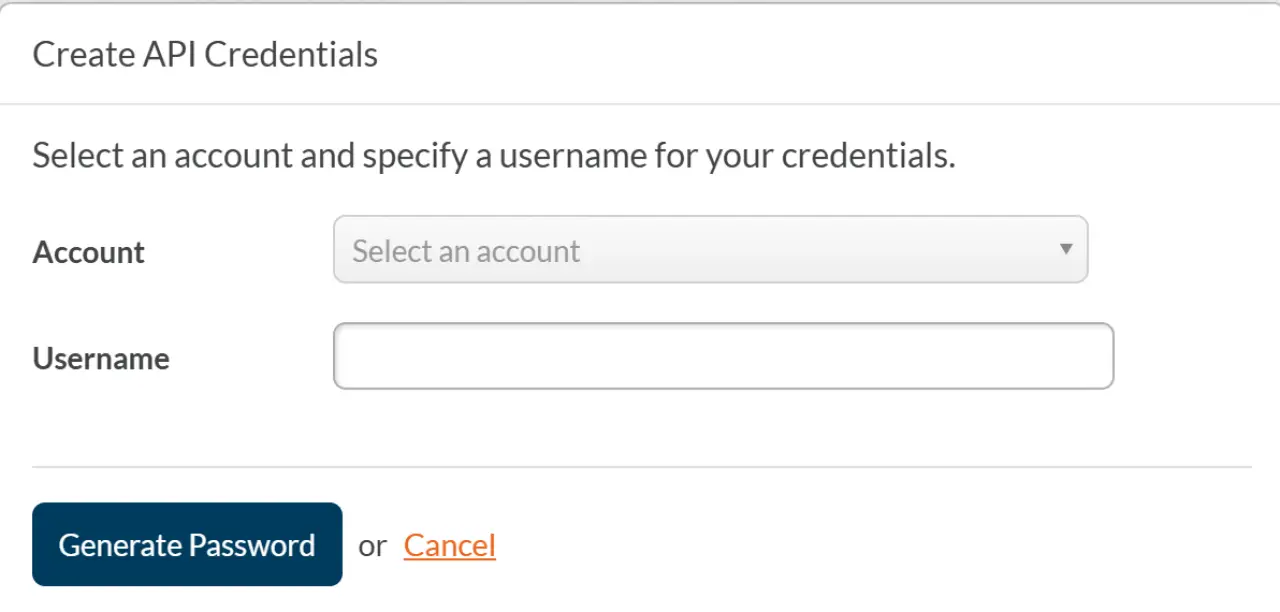
- Step 4: Click on the +Create Credentials button. Then select your account in the drop down. Create a username. Then on the next page hit generate password and copy both username and password into the CMS Max Payments portal.
Note: The ZIP code match is validated by the issuing bank. Not all issuing banks validate this data and can approve data that does not match. it is ultimately up to the issuing bank to approve or decline the transaction. We do have gateway level settings (AVS flag) that will automatically decline transactions where the AVS information does not match.
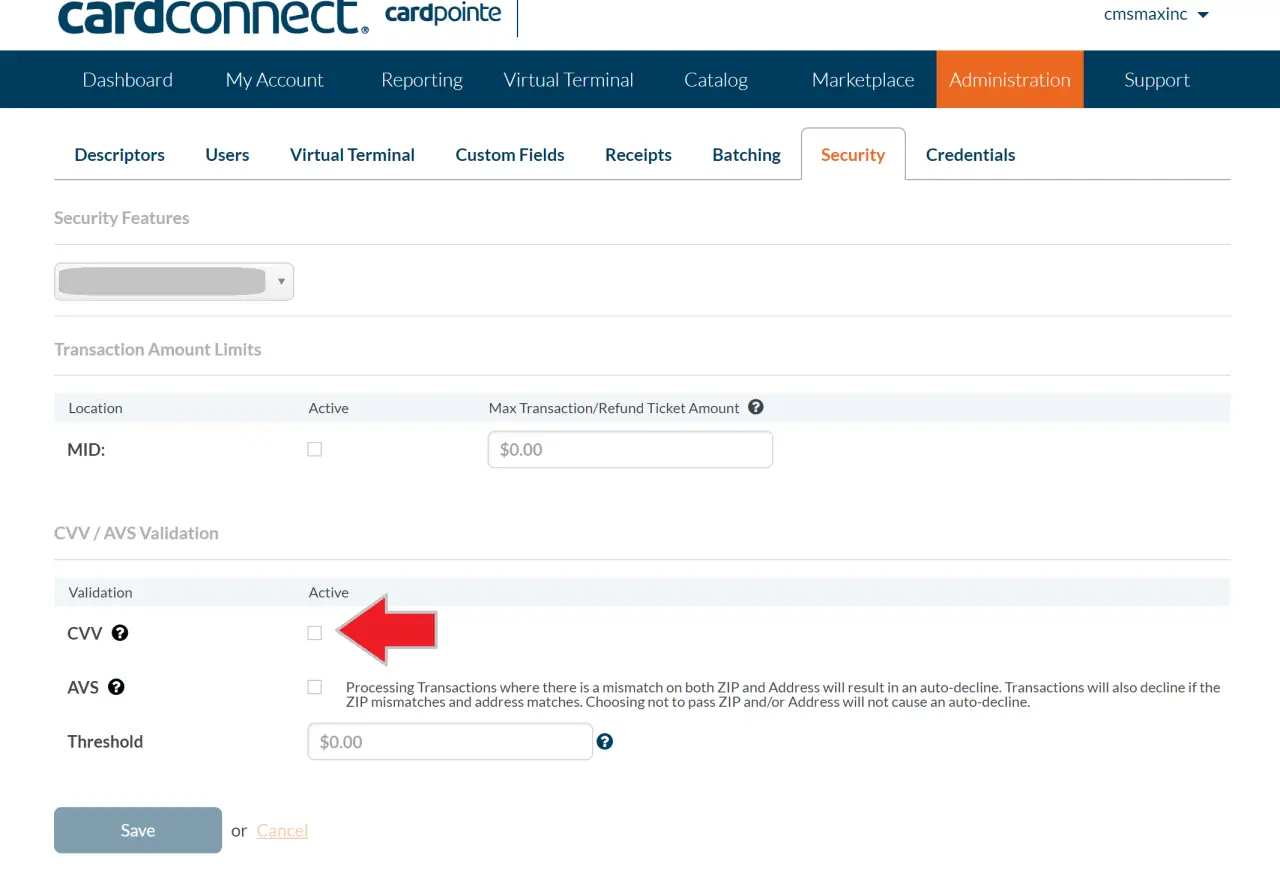
By default, CVV is not enabled. If you would like to enable that for enhanced security, please log into your cardpointe account and go to the Administration >> Security page.