

Easily Create Job Postings and Manage your Companies Employment Applications
We have an amazing career and job posting add-on for large or small companies who need the ability to manage different career positions and be able to sort by job position as well as part time or full time including being able to filter by a location. Whether you have 1 location or 10,000 locations our add-on allows you to easily manage your applications and careers page for your website.
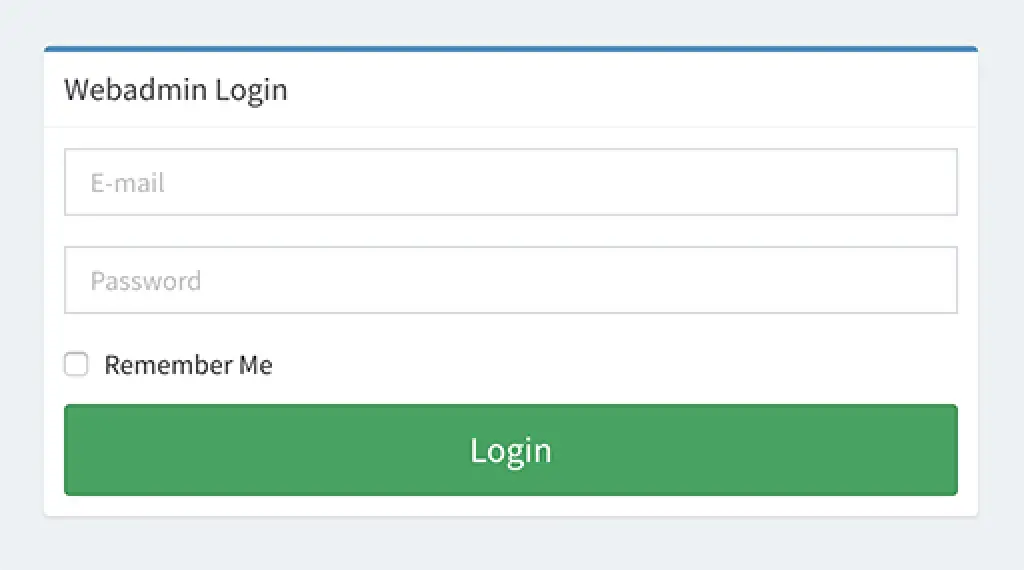
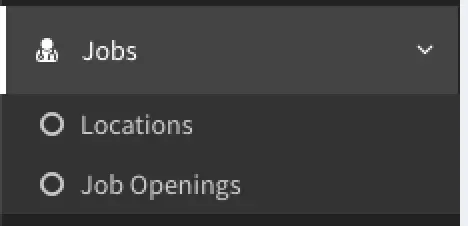
Once logged in, select “Jobs” from the menu in the left column. This will drop down two menu items.
Adding Locations
The first menu item “Locations” is where you add/edit all the locations.
Note: A location only needs to be added once and NOT for each job posting, before adding a location check to make sure it doesn’t exist in the Job Locations list on the “Locations” page.
To add a new location, click “Add Job Location”.
Next, type in the location address and click “Save”

The new location should now be added.
Adding/Managing Job Openings
The second menu item “Job Openings” is where you add/manage all job listings.
Once on the “Job Openings” page, at the top will be a filter option to filter by location.
Note: The “All Locations” filter is for jobs that are not location specific and require the applicant to work at multiple locations.

To add a new job listing click “Add Job Opening”
Note: If there is a job position that is available at more than one location specifically for that location, a new job listing has to be created for each location.

Next type in the name of the position in the “Position” form fill, this will be displayed as the heading of the job posting.

Next section is “Locations” only check “All Locations” if the job posting being created requires the applicant to work at all the locations and not at one specific location. Otherwise, skip to the next section.
In the “Location” section, select what location this job posting is for from the dropdown menu.

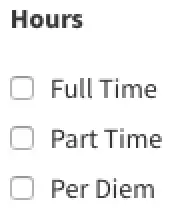
In the “Hours” section check is this position is Full-time, Part-time and/or Per Diem.
Next, in the “Form” section, select the desired career form.

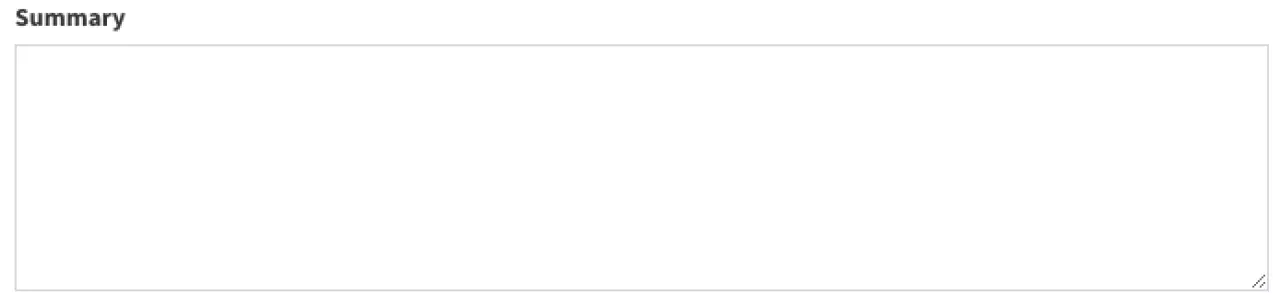
In the “Summary” section type a brief summary of the position. This will show up on the job listing before they click through to see the full job posting.
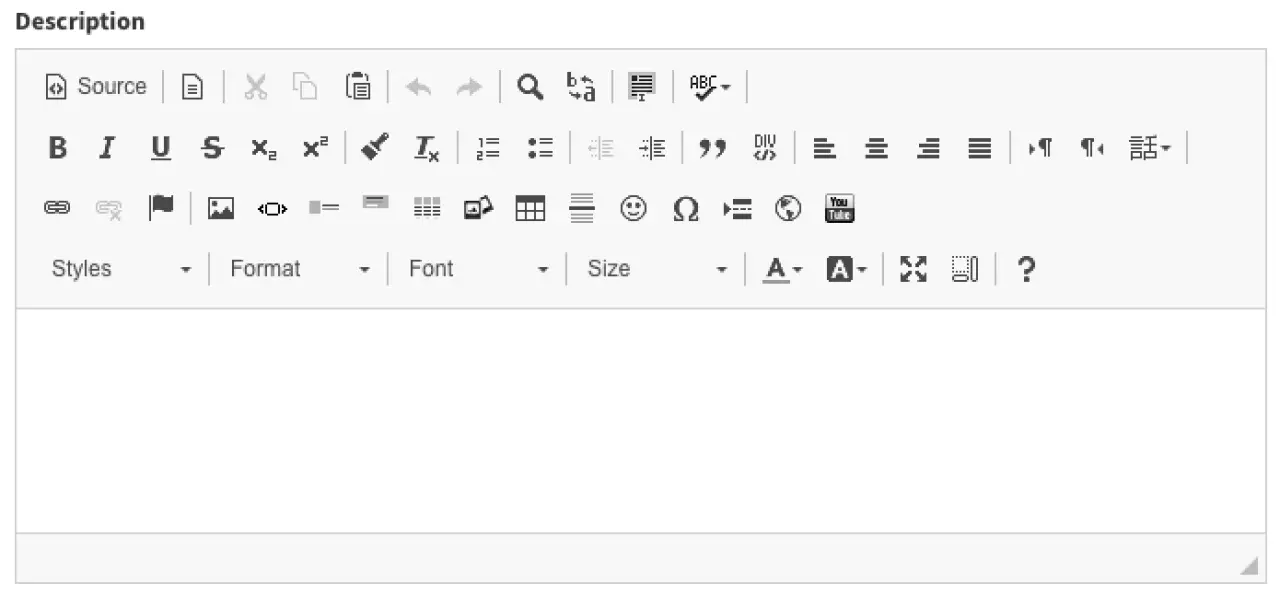
In the “Description” section, type/paste in the full job posting (Job description, qualification, requirement etc.) This section will show above the application form once they click through on the job posting.
In the last section “Meta/SEO” the “Browser Title” and “URL” are auto-generated using the “Position” title from the top of the page.
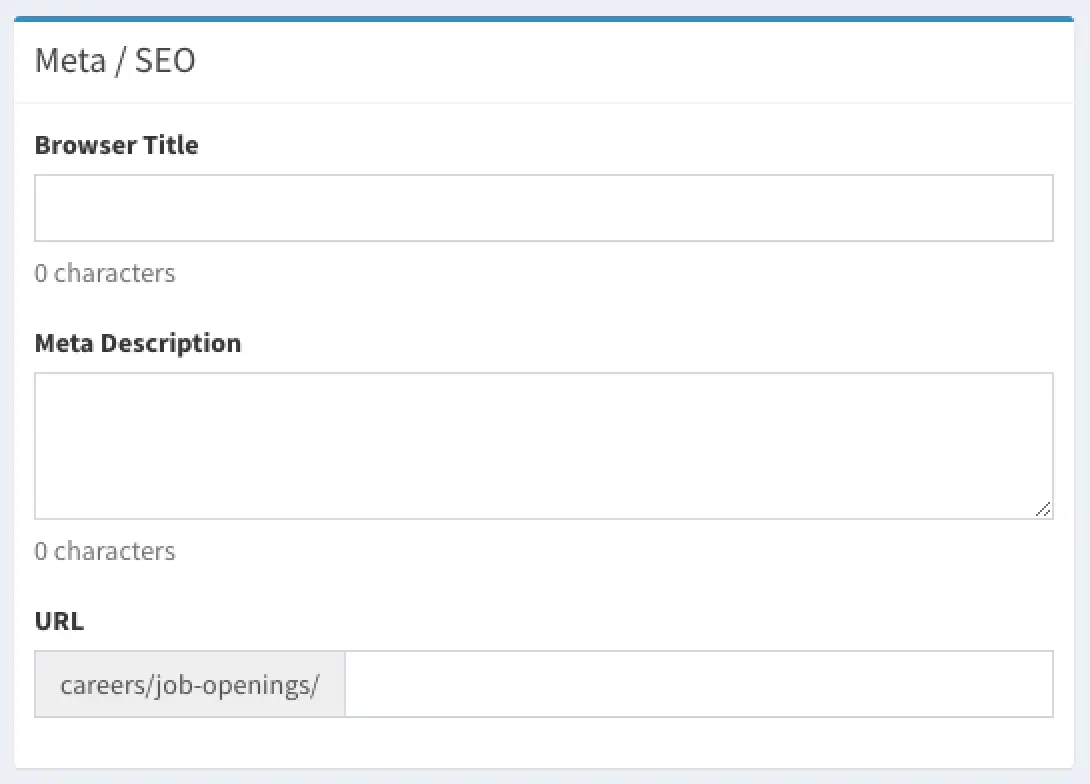
Recommendation: If the job posting is for a specific location, in the “URL” after the position add “-” and then the name of the location. See the example below.

If the “URL” ends with a “-1” this means that a job posting with that Name has already been created. Check all the job opening to make sure this is not a duplicate before saving.
The last step is to click “Save” at the top right of the page.
Removing/Reposting a Job Posting.
To remove a job posting or repost a job posting that already exists, click on the “Job Openings” menu item from the left column menu.
Next click on job position desired to repost/remove.
Next, in the “Hours” section, If any of the hours are checked, this will indicate that the job is posted, if none of the options are checked this means the job is not posted. To remove this job posting, uncheck all option, to repost this job posting check what hours this position is for and then click “Save”.
Recommendation: Create all job posting for all position for all locations leaving the hours section unchecked. Select the hours once specific job position opens up to post it.
Building Relationships with Web Developers and Marketing Agencies that want better results
The world's fastest and most SEO friendly website code.