Retail source
Own stable product identity, operational inventory, store activity, prices, customers, and transactions only where the exact system and merchant policy support them.
Octopus Bridge + CMS Max
Keep the retail source of truth connected to a storefront built for merchandising, search visibility, conversion, and growth.
24Seven Commerce currently lists 25 POS, retail, inventory, and ERP systems for its CMS Max connection. CMS Max turns the approved data into a customer-facing commerce platform while discovery defines product selection, field ownership, inventory promises, order handoffs, exceptions, monitoring, and support.

One connection, three responsibilities
The goal is not to copy every field everywhere. It is to preserve dependable retail operations, move only approved data, and give the website enough freedom to create a better customer experience.
Own stable product identity, operational inventory, store activity, prices, customers, and transactions only where the exact system and merchant policy support them.
Own connector configuration, product selection, mappings, transformations, schedules, directions, credentials, processing, logs, retries, and middleware support.
Own the website, enriched content, categories, search visibility, forms, checkout experience, product feeds, campaigns, customer communication, and digital measurement.
Supported-system directory
Every destination below has a dedicated CMS Max planning page. Use it to review the product context, high-risk decisions, field contract, launch model, current source references, and questions to resolve with your team.
Compatibility checkpoint: A name on the current provider list establishes a public connection path, not a universal field guarantee. Confirm edition, region, account, locations, credentials, connector build, provider plan, data quality, approved directions, and support ownership before quoting or scheduling.
What the public workflow proves
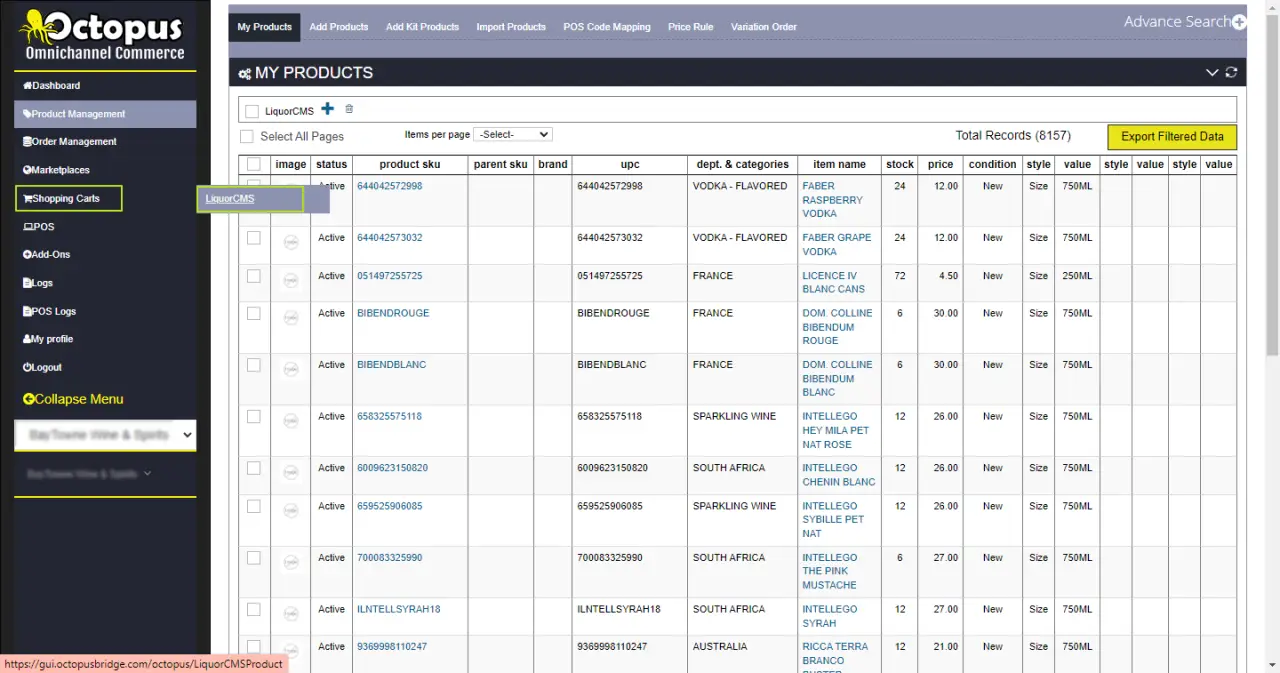
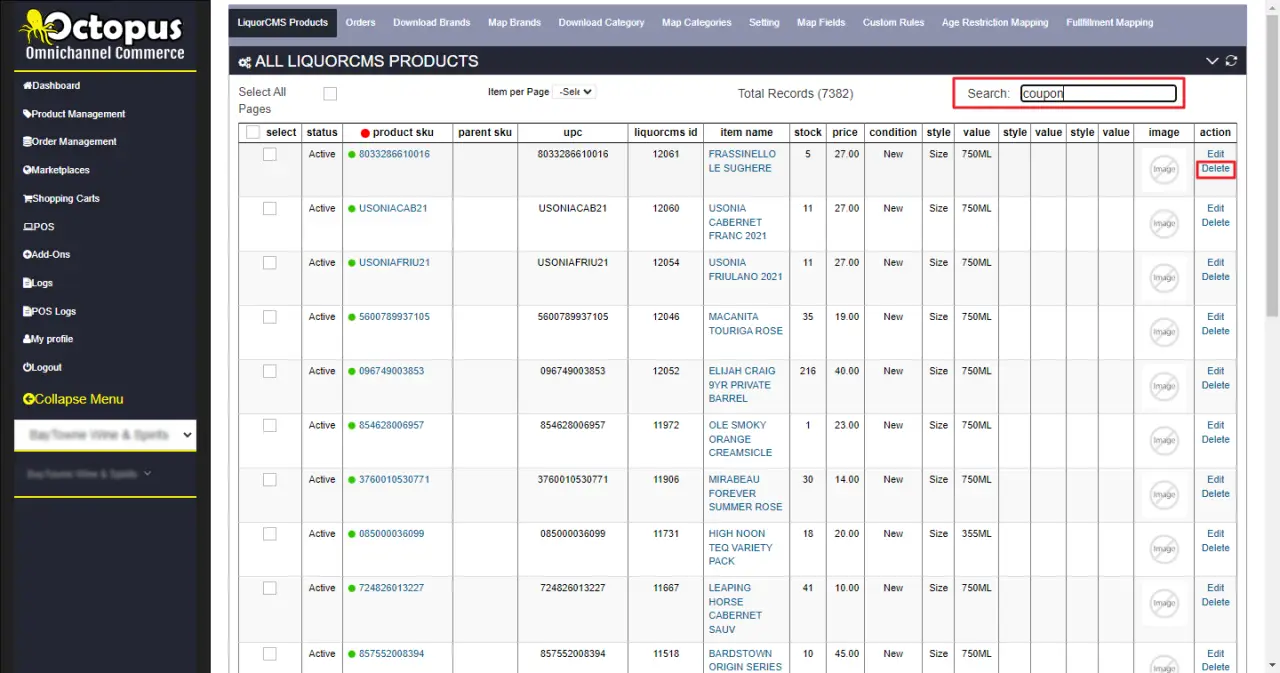
The current CMS Max instructions demonstrate the CMS Max shopping-cart destination, product search, and a product-level Delete action. Those controls create a useful operational baseline, while the full merchant contract still defines source behavior and resulting website state.

Integration contract
The provider describes product, inventory, customer, and order integration capabilities. The merchant implementation should treat each domain below as unapproved until it has a source, destination, trigger, cadence, mapping, conflict rule, error path, test, and owner.
| Data domain | Questions to resolve | Acceptance evidence |
|---|---|---|
| Product identity | Which system owns SKU, UPC, parent-child relationships, categories, attributes, status, archive, delete, and reactivation? | Representative create, update, archive, intentional removal, and restoration reconcile by stable ID. |
| Content + media | Which descriptions, specifications, images, alt text, documents, and SEO fields come from the source, connector, or CMS Max? | Ownership and overwrite rules survive repeated syncs, missing assets, replacements, and editorial changes. |
| Price + promotions | Which price level, currency, tax basis, sale window, discount, location, and rounding rule governs online display and checkout? | Base, sale, expiration, tax, discount stacking, rounding, and failure states reconcile. |
| Inventory | Which locations contribute, what is available to sell, how do reservations and safety stock work, and how stale may the data become? | Store sales, web orders, returns, transfers, adjustments, offline periods, and recovery are measured. |
| Online orders | Which customer, line, tender, tax, discount, shipping, pickup, status, fulfillment, cancellation, refund, and return data moves back? | The complete lifecycle passes with duplicate prevention, idempotency, logs, retries, and reconciliation. |
| Operations | Who monitors, retries, pauses, reconciles, escalates, changes mappings, rotates credentials, restores backups, and approves releases? | Runbooks, alerts, named owners, support contacts, rollback, recovery drills, and launch sign-off exist. |
Controlled implementation
A reliable integration protects store operations and customer promises by reducing assumptions at each stage.
Confirm product, edition, region, account or database, locations, access, connector build, provider plan, volumes, support posture, peak periods, and current website.
Resolve identifiers, duplicates, variants, categories, units, images, price rules, inventory locations, customers, taxes, discounts, shipping, pickup, and fulfillment.
Use a limited assortment and real exception cases, reconcile products, prices, stock, customers, and orders, verify logs and retries, and document operator procedures.
Launch by category or location, monitor sync and checkout, reconcile daily, preserve rollback, and expand only after acceptance criteria and support ownership hold.
Current source references
Products, editions, plans, APIs, connectors, fields, and directions change. Current provider pages establish the public path; the merchant scope and acceptance evidence govern the actual implementation.
Octopus Bridge FAQ
Use these answers as discovery prompts, then convert them into a field map, acceptance tests, operating procedures, monitoring, support boundaries, and named owners.
24Seven Commerce currently lists Acceo SmartVendor, Auto-Star Star-Plus, Bepoz, NCR Counterpoint, ERPLY, FranPOS, Fred POS, JCSSoft POS, Keystroke POS, Liquor POS, Loyverse POS, Microsoft RMS, Osprey POS, pcAmerica CRE, QuickBooks POS, Ranger POS, Retail Management Hero, Retail Plus, Retail Pro 8, 9, and Prism, TallySoft POS, Vend / Lightspeed X-Series, Visual Retail Plus, Windward System Five, YellowDog Inventory, Zedonk ERP. The exact product edition, region, account, access method, connector build, fields, and workflows must be confirmed for each merchant.
Octopus Bridge is a separately configured middleware product from 24Seven Commerce. The implementation connects the approved retail source to an Octopus Bridge environment and CMS Max destination, with credentials, product selection, mappings, schedules, logs, and support ownership defined during discovery.
The public CMS Max guide verifies selected product publishing into the CMS Max shopping-cart destination and a product-level control used to stop sending an item. The provider describes broader product, inventory, customer, and order capabilities, but every CMS Max field and direction must be included in the merchant scope and tested before launch.
24Seven Commerce describes CMS Max integration as feeding web orders to the POS. The exact order record, customer behavior, tender, tax, discount, shipping, pickup, fulfillment, cancellation, refund, return, and failure path depends on the selected POS connector and merchant configuration and must pass acceptance testing.
The current CMS Max instructions show an operator opening the CMS Max shopping-cart destination, finding the product, and using the product-level Delete control. The team should document what that action does in the active connector version, how CMS Max handles the item, and how an intentional removal differs from a failed sync.
Confirm the exact system and edition, assign data owners, map representative products and variants, resolve identifiers, define each field direction and exception, configure a limited assortment, reconcile products, prices and inventory, test the full order lifecycle, pilot by category or location, and expand with monitoring, backups, escalation, and rollback procedures.
Build connected retail
Bring the exact POS or ERP product, edition, locations, representative catalog, data owners, fulfillment model, current website, connector information, and growth goals. CMS Max will map the supported connection and launch plan.
The world's fastest and most SEO friendly website code.