Payment Gateways
Accept credit card, ACH, and PayPal payments through multiple gateway options
Overview
The Payment Gateways plugin provides a unified payment processing solution for your website. It supports multiple credit card gateways (Authorize.net, CardPointe, and Stripe), ACH bank payments via Paya, and PayPal. You can also define manual payment methods such as bank transfer or cash on delivery. Only one credit card gateway can be active at a time, but you can enable ACH and PayPal alongside it.
Setup
- Navigate to Settings > Plugins
- Find Payment Gateways and click to open the settings page
- Click Save and Install
- Enable the payment methods you need and enter the required credentials for each
Configuration
General Settings
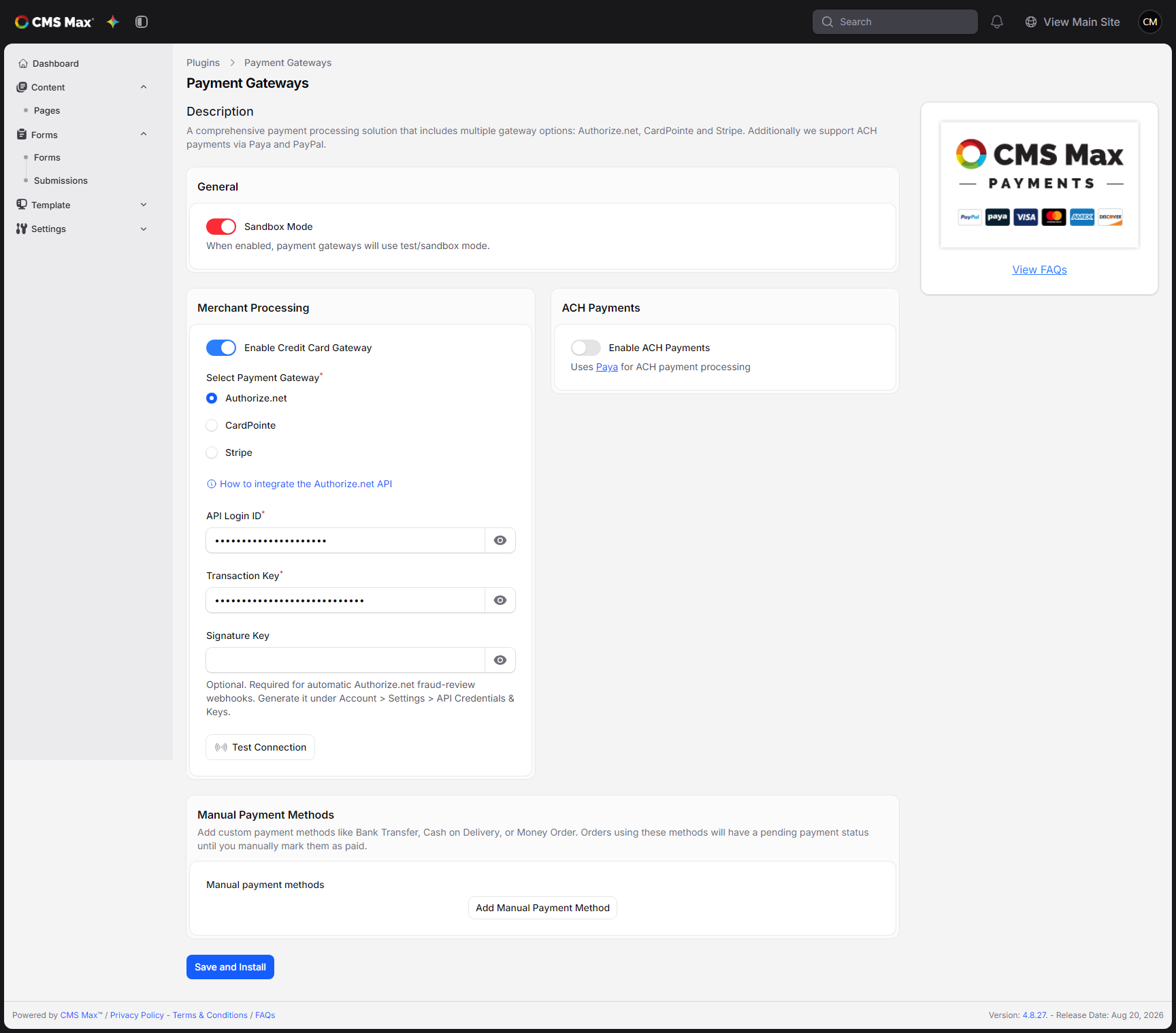
| Setting | Description |
|---|---|
| Sandbox Mode | When enabled, all gateways operate in test mode. Use this for development and testing before going live. |
Merchant Processing (Credit Cards)
Toggle Enable Credit Card Gateway and select one of the available gateways:
Authorize.net
| Field | Description |
|---|---|
| API Login ID | Your Authorize.net API Login ID |
| Transaction Key | Your Authorize.net Transaction Key |
| Signature Key | Optional 128-character key used to verify Authorize.net fraud-review webhooks |
To retrieve your API credentials:
- Log in at account.authorize.net
- From the main menu, select Account > Settings
- Click API Credentials & Keys
- Copy your API Login ID and paste it into the corresponding field in CMS Max
- Click Submit to generate a new Transaction Key, then copy it into CMS Max
- Generate a Signature Key on the same page and copy it into CMS Max to enable automatic fraud-review webhook updates
Testing your connection: Enter your credentials, then click Test Connection beneath the Authorize.net fields. The check runs entirely on the server against the values currently shown in the form, including unsaved edits, and never creates a transaction, authorization, or charge of any kind — no card details are involved. The result tells you:
- Whether your API Login ID and Transaction Key successfully authenticated with Authorize.net
- Which environment was tested (Production, or Sandbox when Sandbox Mode is enabled)
- Whether a Signature Key was provided — the test cannot verify that key against your Authorize.net account
The test does not save your changes. After a successful test, click Save Changes or Save and Install to persist the values.
Fraud Detection Suite: Authorize.net includes tools to prevent spam and fraudulent transactions. We recommend enabling these filters in your Authorize.net account:
| Filter | Recommended Setting |
|---|---|
| Hourly Velocity Filter | 50 transactions per hour, decline |
| Transaction IP Velocity Filter | 3 transactions per hour, decline |
| Enhanced AVS Handling Filter | Decline N & A responses |
| Enhanced CCV Handling Filter | Decline N responses |
| Regional IP Address Filter | Decline all regions except North America |
Granting CMS Max access to your account: If you need the CMS Max team to help configure your gateway, you can add them as a user in Authorize.net under Account > User Administration. Create a new user with the role "Account Admin" and the email info@cmsmax.com.
Transaction Audit: Once Authorize.net is your active gateway, a Transactions button appears at the top of this page, giving you a live, searchable copy of your Authorize.net transaction history with printable receipts and CSV export. See Authorize.Net Transaction Audit.
CardPointe
| Field | Description |
|---|---|
| Username | Your CardPointe gateway username |
| Password | Your CardPointe gateway password |
| Merchant ID | Your CardPointe merchant identifier |
| Hold Payment | When enabled, payments are authorized but not captured immediately. Use this if you need to adjust the captured amount (e.g. for tip adjustments). Your merchant account must be entitled for this capability. |
Testing your connection: Enter your credentials, then click Test Connection beneath the CardPointe fields. The check runs entirely on the server against the values currently shown in the form, including unsaved edits, and never creates a transaction, authorization, or charge of any kind — no card details are involved. The result tells you:
- Whether your Username and Password successfully authenticated with CardPointe
- Whether the Merchant ID is recognized on CardPointe's site, and whether that merchant account is currently enabled
- Which environment was tested — Production, or Sandbox when Sandbox Mode is on
Merchant Security Settings: Below the CardPointe fields, a read-only status shows whether CVV validation and AVS validation are enabled on your CardPointe merchant account — these control whether CardPointe automatically declines transactions with CVV or address mismatches. Click Check Security Status to refresh the status using the credentials entered above. These settings cannot be changed from CMS Max (CardPointe provides no way to change them remotely): to turn them on or off, log into the CardPointe web app and go to Administration → Security.
Stripe
Stripe uses a Connect-based integration. After selecting Stripe as your gateway, follow the on-screen OAuth flow to link your Stripe account.
Once connected, the Stripe section shows your current card processing rate for your plan. If a rate change is scheduled, a second line tells you the new rate and the date it takes effect.
Set up Stripe payments: where this option is available, click it to start a guided setup that walks you through connecting Stripe without leaving your site. Stripe collects your business and banking details in the same window. If you close the window before finishing, click Continue setup to pick up where you left off, or Cancel setup to remove the pending connection and start over.
Once setup is complete, Open Stripe dashboard takes you to your Stripe dashboard for payouts, disputes, and tax documents, and Manage Stripe account lets you update your business details without leaving your site. When Stripe needs something from you, a notice appears in the Stripe section.
Payment methods: click this to turn individual payment methods on or off, such as Apple Pay, Google Pay, or buy-now-pay-later options. A method you turn on only shows at checkout when Stripe also finds it eligible for the shopper's country, currency, and amount. Affirm and Klarna need a shipping address at checkout to appear as options.
PayPal
Toggle Enable PayPal Payments to accept PayPal.
| Field | Description |
|---|---|
| Client ID | Your PayPal REST API Client ID |
| Client Secret | Your PayPal REST API Client Secret |
To retrieve your PayPal API credentials:
- Go to developer.paypal.com and sign in
- Hover over your name in the top-right corner and select Dashboard
- Click Create App
- Enter "Web" as the App Name and click Create App
- On the application details page, click Show next to the Secret field
- Copy both the Client ID and Secret values into the corresponding fields in CMS Max
ACH Payments (Paya)
Toggle Enable ACH Payments to accept bank transfers via Paya. ACH transactions typically settle within 2–5 business days.
| Field | Description |
|---|---|
| Paya Gateway Terminal ID | The terminal ID provided by Paya for ACH processing |
Automatic status sync: Because ACH takes days to settle, orders and form payments start out Pending. A background job checks Nuvei/Paya's settlement reports twice a day and automatically moves each transaction to Paid/Settled (cleared) or Failed (returned by the bank, with the return code recorded) — no manual reconciliation needed. See the Failed ACH panel on the eCommerce dashboard for anything that came back returned. ACH orders remain On Hold and are not sent to DoorDash or ShipStation until the payment clears. If the order is cancelled before settlement, a later settlement updates its payment record but does not release fulfillment.
Applying for a Paya account: To get started with Paya, you will need to provide:
- Business legal name, Tax ID (EIN), and website URL
- Business address and phone number
- Contact person details (name, phone, email)
- Owner information (name, email, phone, ownership percentage — must be 25%+)
- Transaction estimates (average amount, max per transaction, monthly volume)
- Documentation: voided check or bank letter, one month's bank statement, and a current processing statement or business license
Contact CMS Max support for assistance with the Paya application process.
Manual Payment Methods

Below the online gateways, you can add custom offline payment methods (e.g. Bank Transfer, Money Order, Cash on Delivery). Orders placed with a manual method will have a "pending" payment status until you mark them as paid in the admin panel.
For each manual method, provide:
| Field | Description |
|---|---|
| Name | The method name shown at checkout (e.g. "Bank Transfer") |
| Additional Details | A short description shown below the method name |
| Payment Instructions | Instructions shown to the customer at checkout and on the order confirmation |
| Active | Toggle the method on or off without deleting it |
Manual methods can be reordered by dragging them in the list.