Chamber Max Member Directory
Managing your business member directory, categories, and settings
Overview
Chamber Max adds a business member directory to your website. Members are listed on a searchable directory page at /members, and each member gets a profile page at /members/{slug}. The plugin is designed for chambers of commerce, membership organizations, and business associations.
Getting Started
After installing the Chamber Max plugin from Settings > Plugins, your site automatically receives:
- 17 default member categories (with subcategories)
- A
/memberspage with the directory shortcode
Navigate to Chamber Max > Members in the admin panel to start adding members.
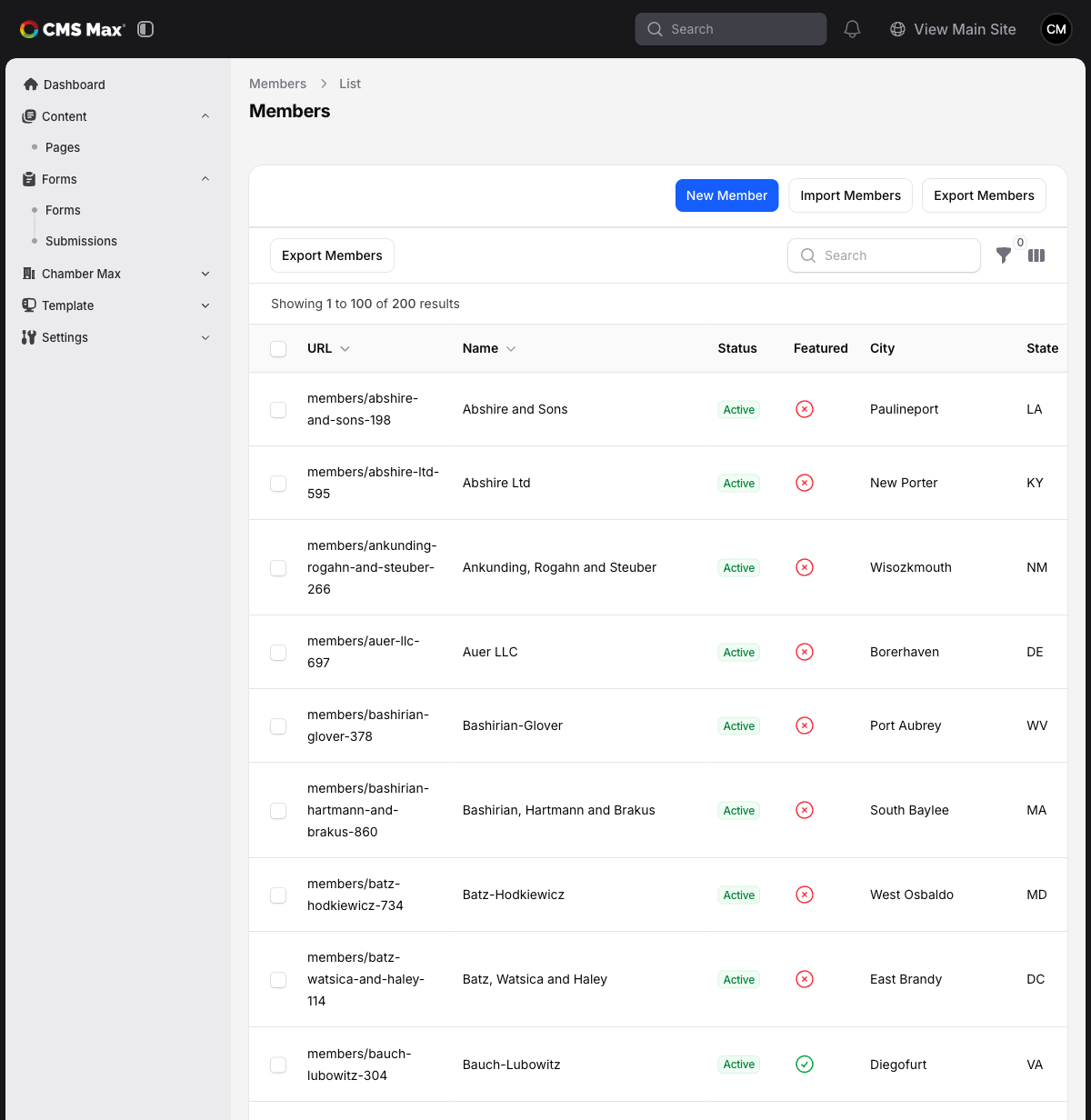
Managing Members
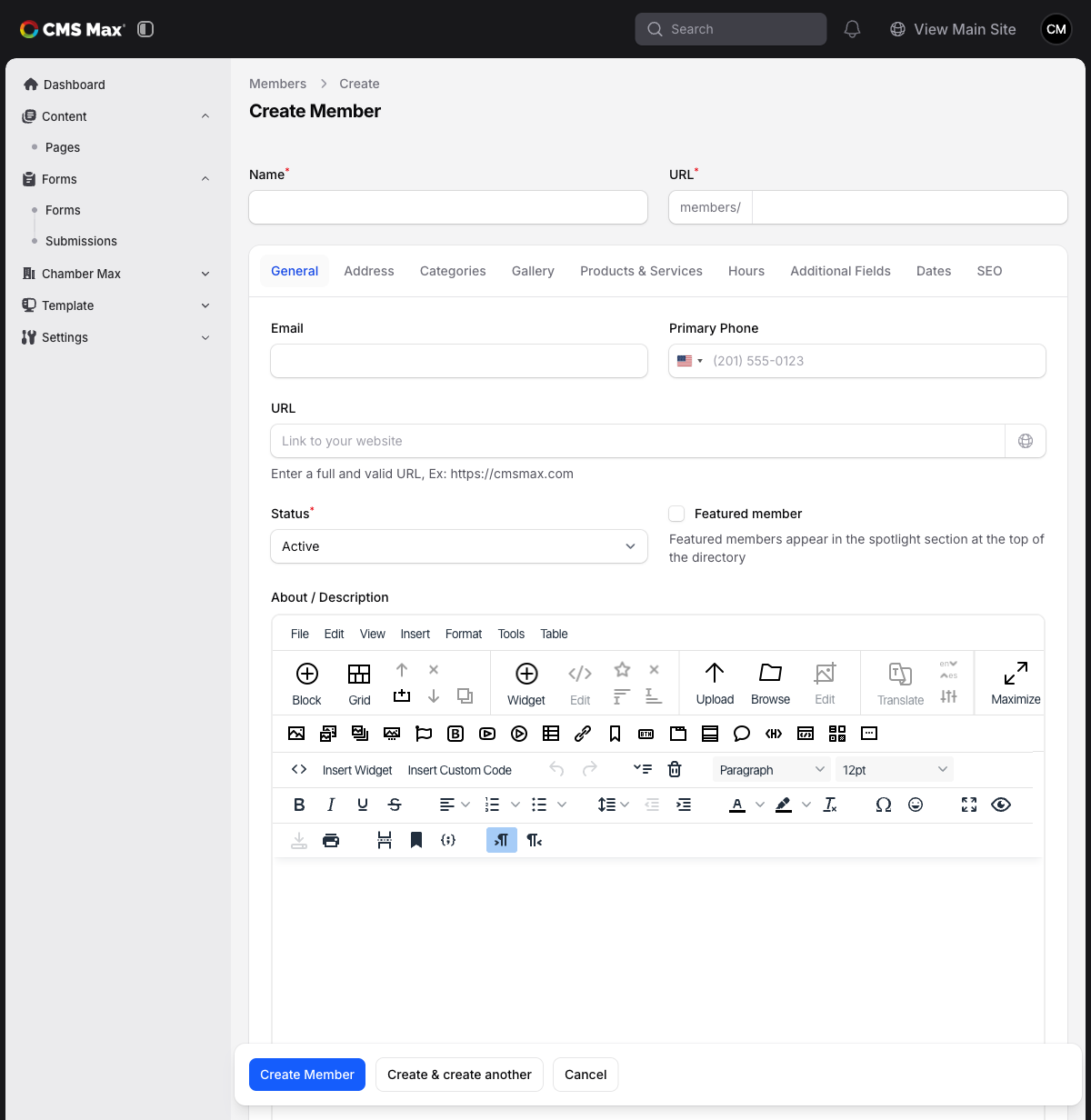
Creating a Member
- Go to Chamber Max > Members
- Click Create
- Fill in the required fields:
- Name — the business name (the URL auto-generates from this)
- Status — Active, Pending, or Disabled (only Active members appear on the frontend)
- Optionally complete additional tabs:
- Address — physical location with map support
- Categories — assign one or more business categories
- Representatives — chamber contacts for this member (name, title, email, phone). Toggle Public on a representative to expose them on the public profile page; private representatives are kept for internal CRM use only.
- Gallery — upload multiple photos
- Products & Services — list offerings with descriptions
- Hours — business operating hours
- Additional Fields — social media URLs, secondary phones, and other configurable fields
- Billing & Membership — internal CRM details (see below)
- Dates — "Member Since" date
- SEO — browser title, meta description, crawl settings
Billing & Membership
The Billing & Membership tab consolidates internal CRM data that is never displayed publicly:
| Field | Description |
|---|---|
| Membership Enabled | Toggle whether the member's membership is currently active |
| Membership Status | Free-form label (e.g., Paid, Lapsed, Comped) |
| Membership Type | Lookup managed in Chamber Max > Membership Types (e.g., Business, Nonprofit, Individual). Create new entries inline from the dropdown if needed. |
| Membership Tier | Lookup managed in Chamber Max > Membership Tiers (e.g., Bronze, Silver, Gold). Create new entries inline from the dropdown if needed. |
| Renewal Due | Date the next membership renewal is due |
| Billing Contact Name | Internal billing contact (separate from the public contact) |
| Billing Email | Internal billing email |
| Balance | Outstanding balance for the member |
| Billing Address | Separate from the public business address — for invoices and CRM records |
Managing Membership Types & Tiers
Membership Types and Tiers are simple lookup lists used to categorize members on the billing side. Manage them under:
- Chamber Max > Membership Types (e.g., Business, Nonprofit, Individual)
- Chamber Max > Membership Tiers (e.g., Bronze, Silver, Gold, Platinum)
Each entry has a name, URL slug, sort order, and optional description. New types and tiers can also be created on the fly from the Billing & Membership tab on a Member.
Featured Members
Toggle Featured on any member to highlight them at the top of the directory in a gold-bordered section. Featured members also appear with the [featuredMembers] shortcode widget on other pages.
Member Statuses
| Status | Frontend Visibility | Use Case |
|---|---|---|
| Active | Visible in directory and search | Normal members |
| Pending | Hidden | New applications awaiting review |
| Disabled | Hidden | Temporarily or permanently removed |
Importing Members
- Go to Chamber Max > Members
- Click the Import button
- Download the example CSV for the correct column format
- Upload your CSV file
- Map columns and confirm the import
The importer creates categories, membership types, and membership tiers automatically if they don't exist. Invalid rows are skipped with error details.
Supported import columns include:
- Core:
name,email,website,status,is_featured,phone,address,city,state,zip,joined_at - Billing & Membership:
billing_contact_name,billing_email,balance,membership_enabled,membership_status,membership_type(name — auto-created),membership_tier(name — auto-created),renewal_date - Relations:
categories(comma-separated category names),representatives(JSON array — see below) - Additional Fields: every enabled metadata field is exposed as
metadata_<field key>
Representatives column shape — provide a JSON array of objects:
[
  {"name": "Jane Doe", "title": "Owner", "email": "jane@example.com", "phone": "555-1234", "is_public": true},
  {"name": "John Smith", "title": "Billing Contact", "email": "john@example.com", "is_public": false}
]
Each object requires name. Optional keys: title, email, phone, is_public (boolean, defaults to true).
Exporting Members
- Go to Chamber Max > Members
- Click the Export button
- A CSV file is generated with all member data including configured metadata fields
Managing Categories
Default Categories
Chamber Max ships with 17 parent categories and approximately 70 subcategories covering common business types (Technology, Food & Dining, Health & Wellness, etc.).
If your categories were deleted or you skipped the initial setup, go to Chamber Max > Member Categories and click Add Default Categories (this button only appears when no categories exist).
Category Hierarchy
Categories support two levels: parent categories and subcategories. When creating a category, select a Parent to make it a subcategory. Only top-level categories can be parents (no deeper nesting).
Reordering Categories
Use the Sort Order field on each category to control display order in the directory's category dropdown.
Directory Settings
Go to Settings > Plugins > Chamber Max to configure:
| Setting | Default | Description |
|---|---|---|
| Members Per Page | 20 | Number of members shown per page |
| Default Sort | A-Z | Initial sort order (A-Z, Z-A, Newest, Oldest, Random) |
| Default Layout | Grid | Grid or List view |
| New Member Days | 90 | Days after creation to show "New Member" badge |
| Chamber Name | (empty) | Used in structured data for SEO |
| Join CTA | Disabled | Show a "Join the Chamber" call-to-action on the directory |
Configurable Fields
The Field Definitions section controls which metadata fields are available when editing members. Fields are grouped into categories (Social Media, Phone Numbers, Business Details, Billing Address, etc.). Toggle fields on or off, reorder them, or add custom fields. The Billing Address group renders on the Billing & Membership tab rather than the Additional Fields tab.
Frontend Features
Directory Page
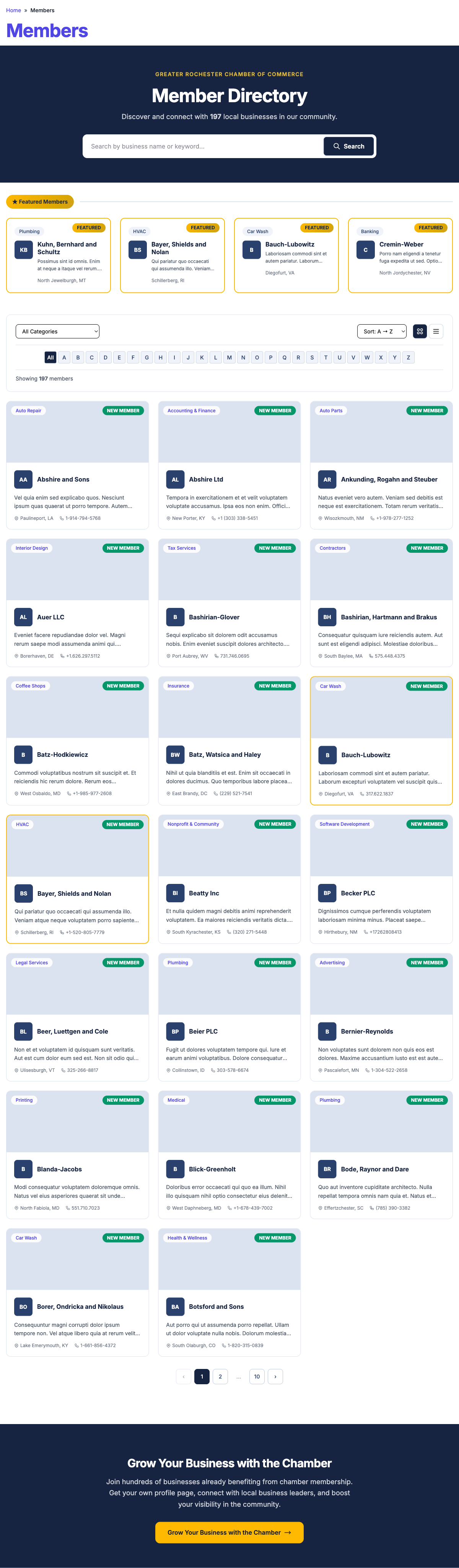
The directory page (/members) includes:
- Hero section — displays the chamber name (if configured) and a search bar
- Featured members — compact gold-bordered cards at the top, always visible
- Category dropdown — filter by business category (supports nested parent/child categories)
- A-Z letter navigation — centered letter bar to jump to members starting with a specific letter
- Sort options — A-Z, Z-A, Newest, Oldest, Random
- Grid/List toggle — switch between card grid and compact list views
- Active filter pills — shown inline with the results count, each removable individually
- Numbered pagination — compact page buttons for navigating large directories
- Join CTA — optional call-to-action banner at the bottom (when configured in settings)
All filters are reflected in the URL, so filtered views can be shared as links.
Member Profile Pages
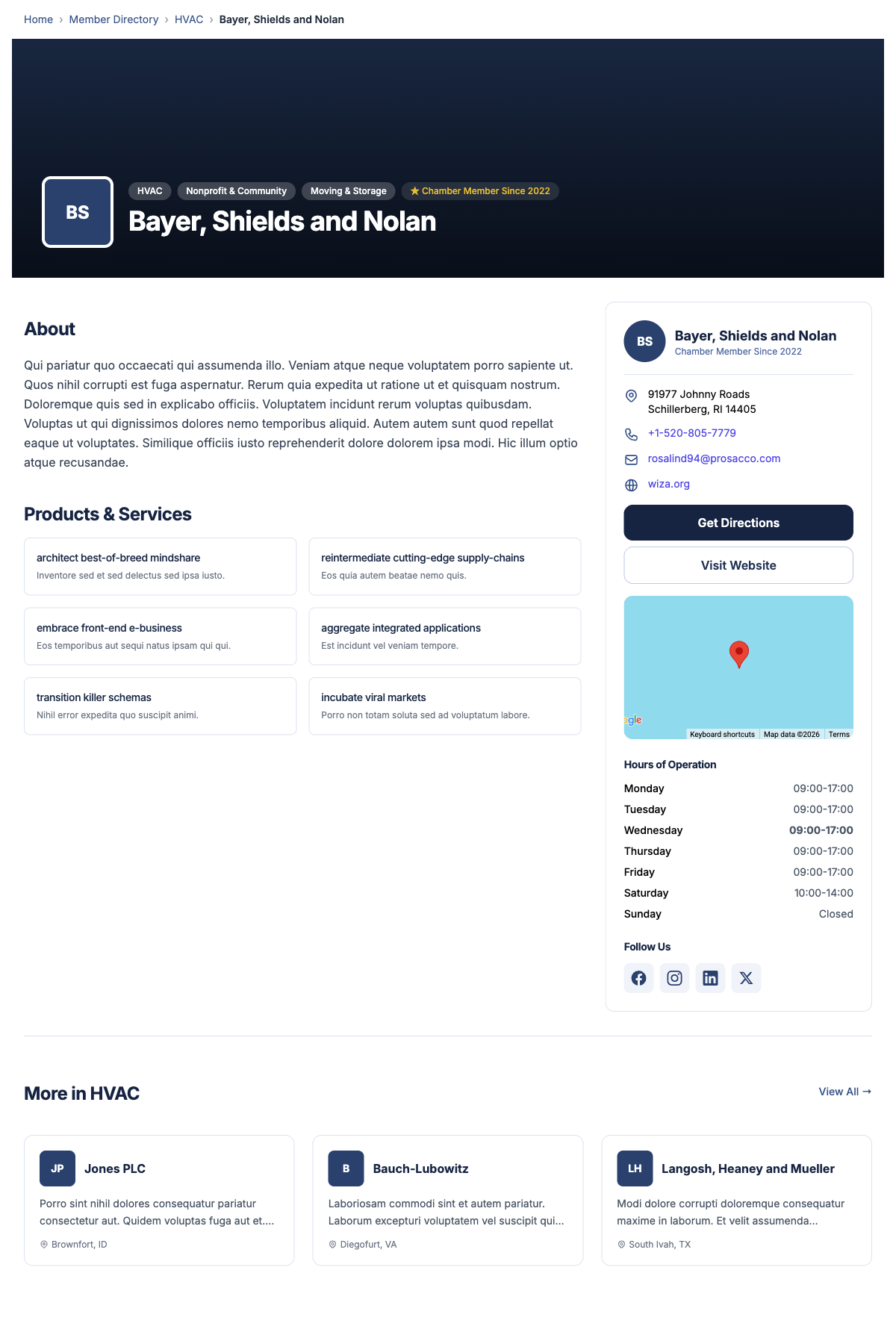
Each member profile (/members/{slug}) shows:
- Breadcrumbs — Home > Member Directory > Category > Member Name
- Hero banner — with category pills, "Member Since" badge, and business name inline with the logo
- About section — business description
- Products & Services — two-column grid of offerings
- Photo gallery — when images are uploaded
- Contact sidebar — address, phone, email, Get Directions and Visit Website buttons, map embed, hours of operation, social media links
- Representatives — public representatives listed in the contact sidebar; representatives marked private are hidden from public profile pages
- Related members — "More in [Category]" section with 3 members from the same category
Shortcodes
| Shortcode | Description |
|---|---|
[memberDirectory] |
Full directory with search, filters, and pagination |
[memberItem] |
Individual member profile (used automatically on member URL pages) |
[featuredMembers] |
Widget showing featured members on any page |
The [featuredMembers] shortcode accepts layout (grid or list) and limit (number of members to show, default 4) parameters.
FAQ
Q: Why don't my new members appear on the website? A: Check that the member's status is set to Active. Only active members are visible on the frontend.
Q: How do I change the directory page URL? A: The directory is a standard CMS page. Go to Pages, find the "Members" page, and change its slug.
Q: Can members manage their own profiles? A: Not in Phase 1. Member self-management is planned for a future release.
Q: How do I add a map to member profiles? A: Fill in the Address fields including city and state. If Google Maps is configured, a map will appear in the member's sidebar.