Webhooks
Send real-time notifications to external services when events happen on your site
What Are Webhooks?
Webhooks automatically send data to an external URL whenever something happens on your site — like a form submission or a new order. Instead of manually checking for updates, the external service receives the data instantly.
Common uses:
- Send form submissions to a CRM (HubSpot, Salesforce)
- Notify your team in Slack when an order is placed
- Sync data with automation tools (Zapier, Make, n8n)
- Feed submissions into a spreadsheet or database
Managing Webhooks
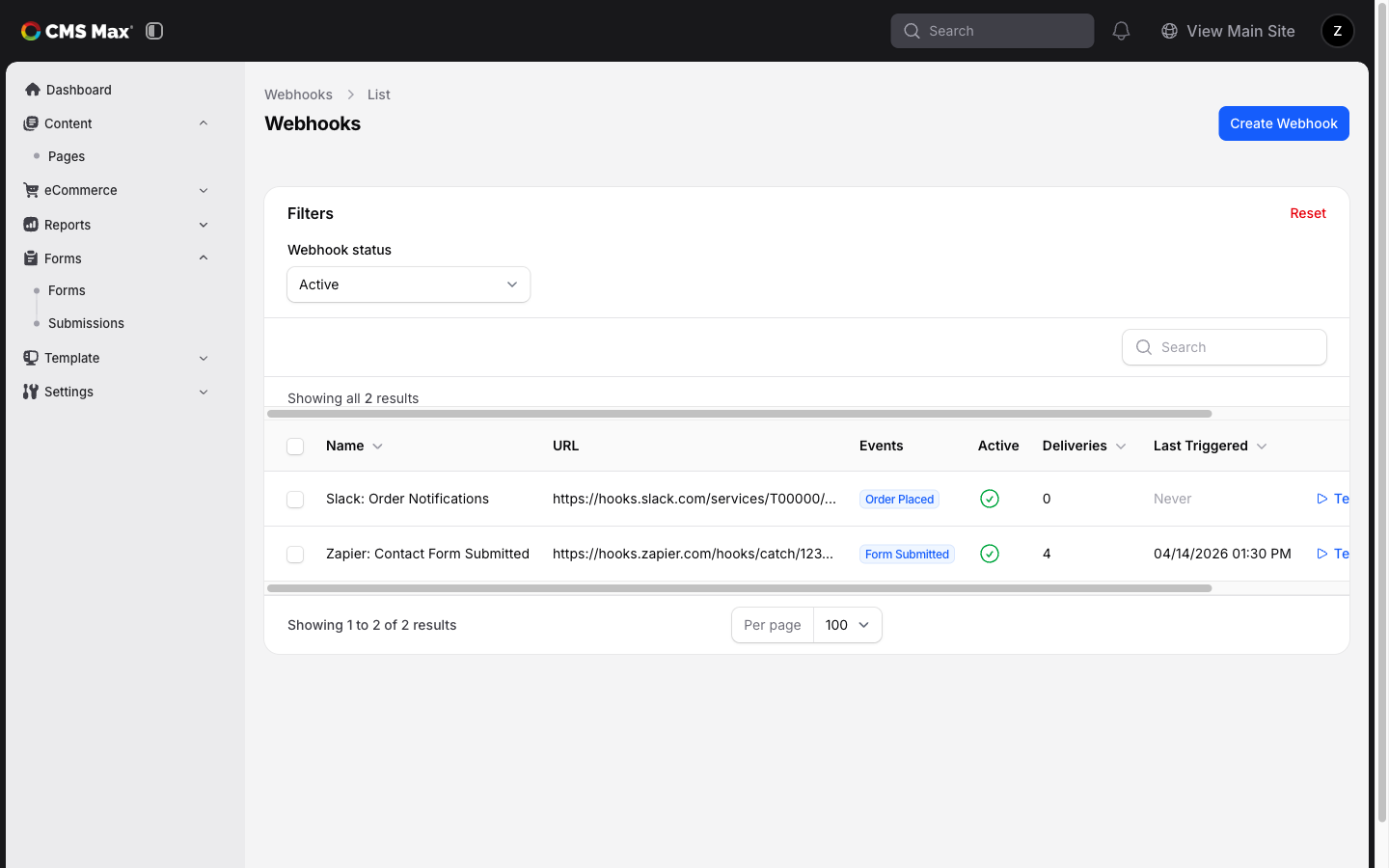
Navigate to Settings > Webhooks in the admin panel.
Creating a Webhook
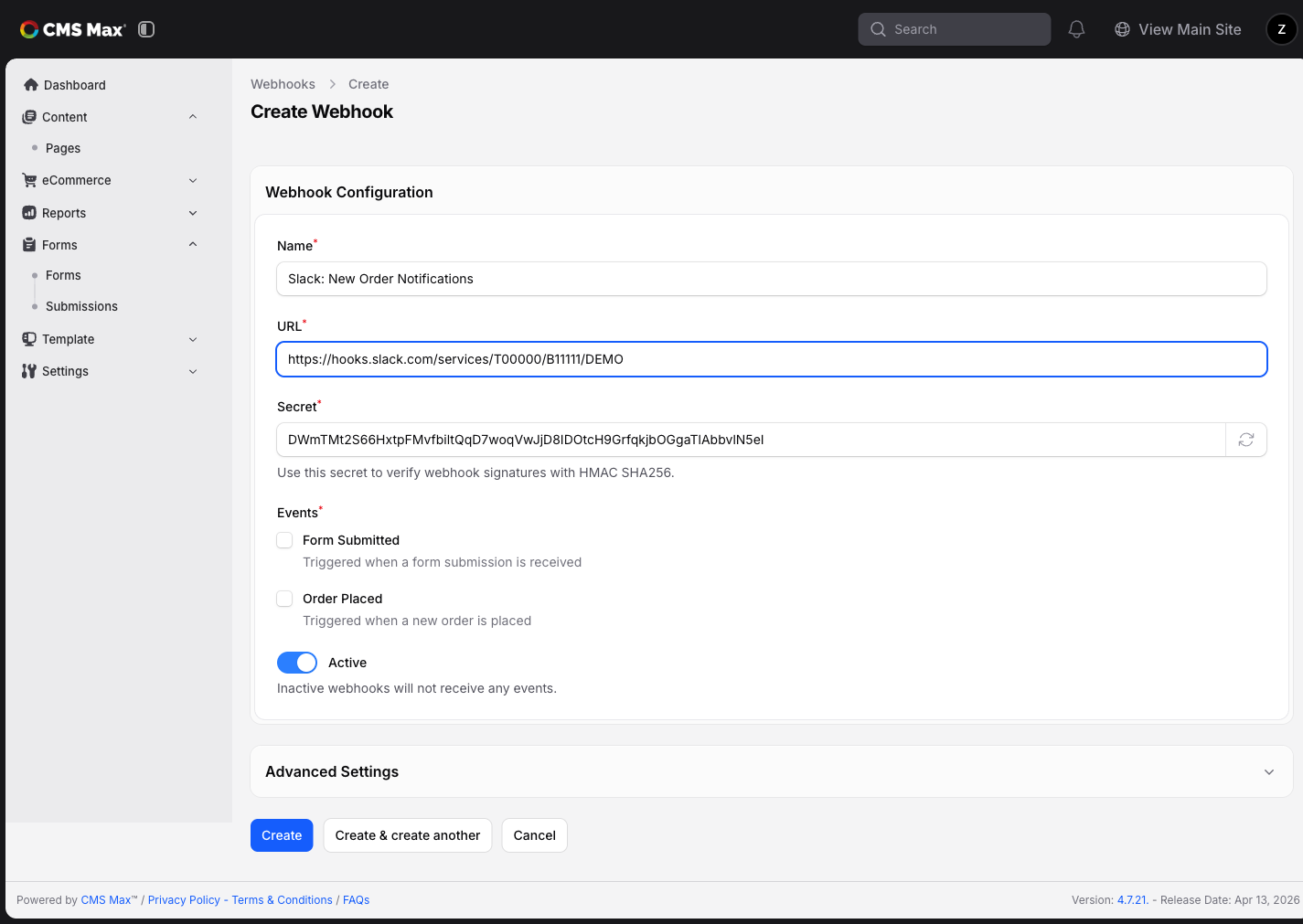
- Click Create Webhook
- Fill in the configuration:
- Name — A descriptive label (e.g. "Slack Order Notifications")
- URL — The endpoint that will receive the data (provided by the external service)
- Secret — Auto-generated. Share this with the receiving service if they verify signatures.
- Events — Check which events should trigger this webhook (e.g. Form Submitted, Order Placed)
- Active — Toggle off to temporarily pause deliveries without deleting the webhook
- Click Save
Advanced Settings
- Timeout — How long to wait for a response (5–120 seconds, default 30)
- Max Retries — How many times to retry if delivery fails (0–10, default 3)
Testing a Webhook
Click the play icon on any webhook in the list to send a test payload. Check the deliveries tab to see the result.
Viewing Delivery History
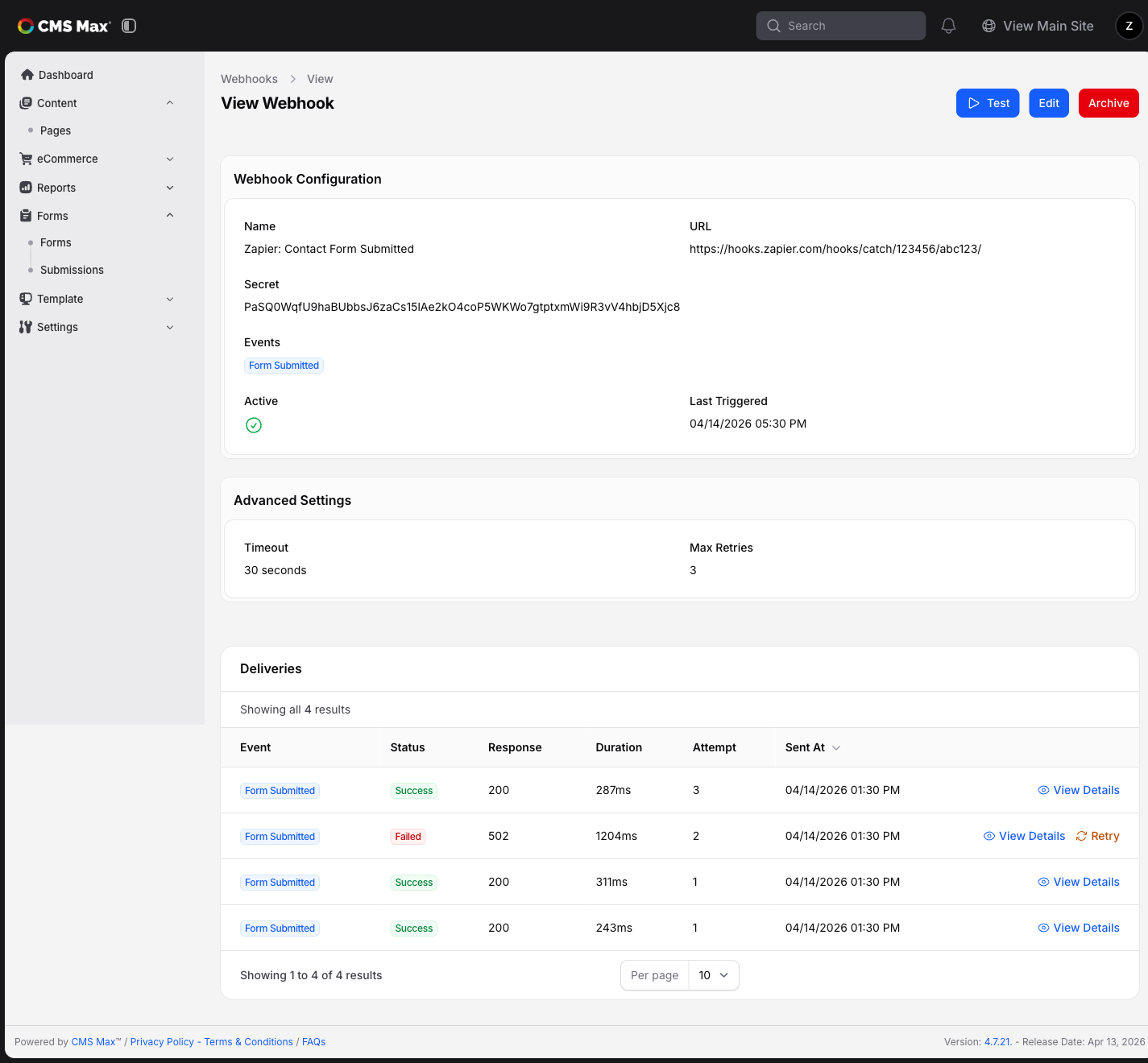
Click a webhook to view its delivery history. Each delivery shows:
- Status — Success or Failed
- Response Code — The HTTP status returned by the endpoint
- Duration — How long the request took
- Attempt — Which retry attempt this was
Click "View Details" on any delivery to see the full payload sent and the response received.
Archiving Webhooks
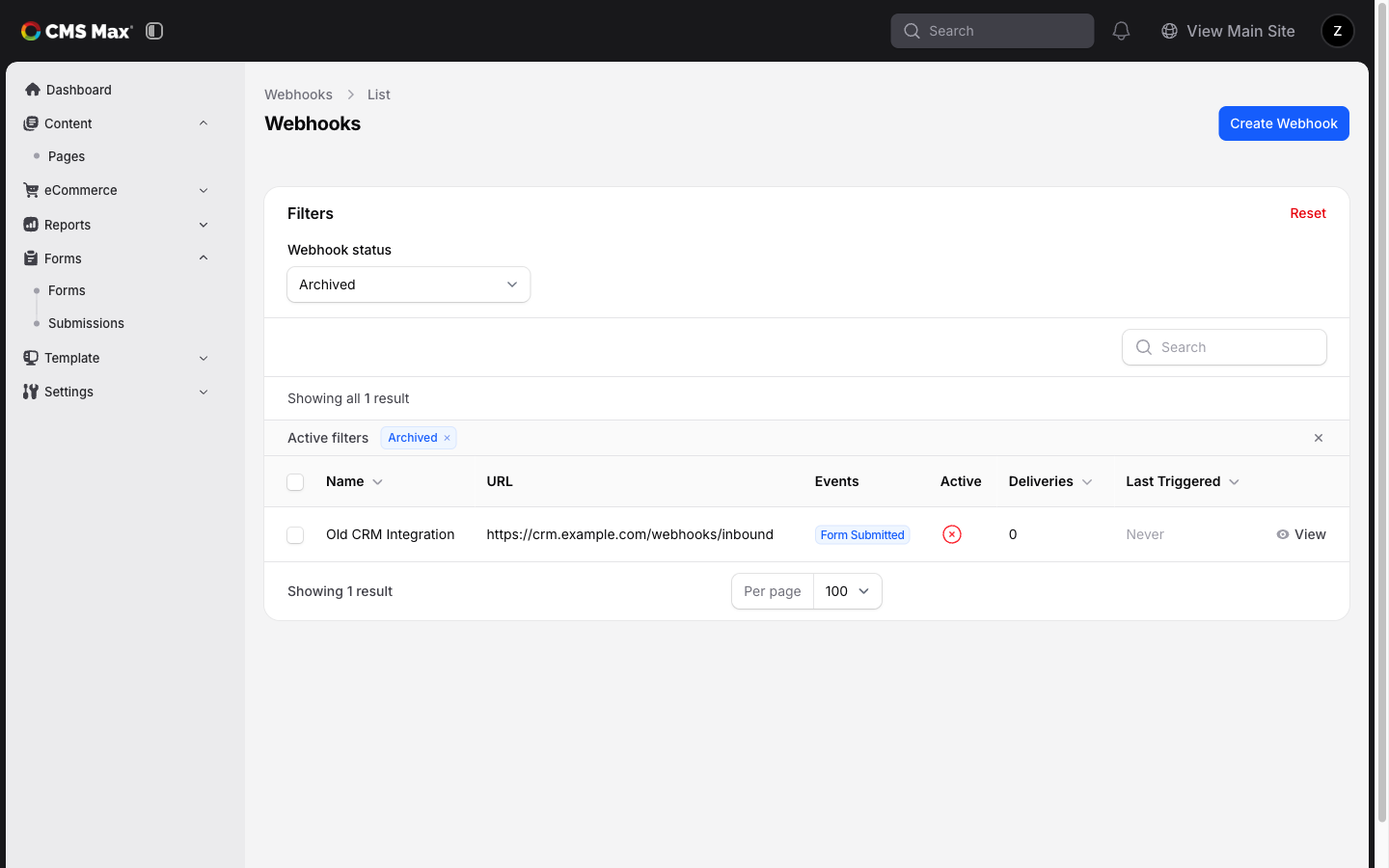
Instead of deleting, webhooks are archived (soft-deleted). Archived webhooks:
- Stop receiving events immediately
- Keep their delivery history intact
- Can be restored later from the "Archived" filter
Automatic Behavior
Auto-Disable
If a webhook fails consistently (10+ consecutive failures), it will be automatically deactivated to prevent hammering a dead endpoint. You'll see it marked as inactive in the list. Re-activate it manually once the receiving service is back online.
Delivery Envelope
Every webhook delivery includes:
{
  "event": "form.submitted",
  "timestamp": "2026-04-01T12:00:00+00:00",
  "data": { ... }
}
The event field tells you what happened. The timestamp is when the event occurred. The data contains the event-specific payload.
Signature Verification
Each delivery includes an X-Webhook-Signature header containing an HMAC SHA256 signature. Use the webhook's secret to verify the payload hasn't been tampered with.
Zapier Integration
For Zapier-specific setup, install the Zapier plugin from the Plugins page. See the Zapier setup guide for step-by-step instructions.