Coupons
Create and manage discount codes that customers can apply at checkout
Overview
Coupons let you offer customers a discount code they enter at checkout. You can create fixed-amount discounts, percentage-off deals, or free shipping offers — each with optional restrictions like minimum order totals, usage limits, and product-specific targeting.
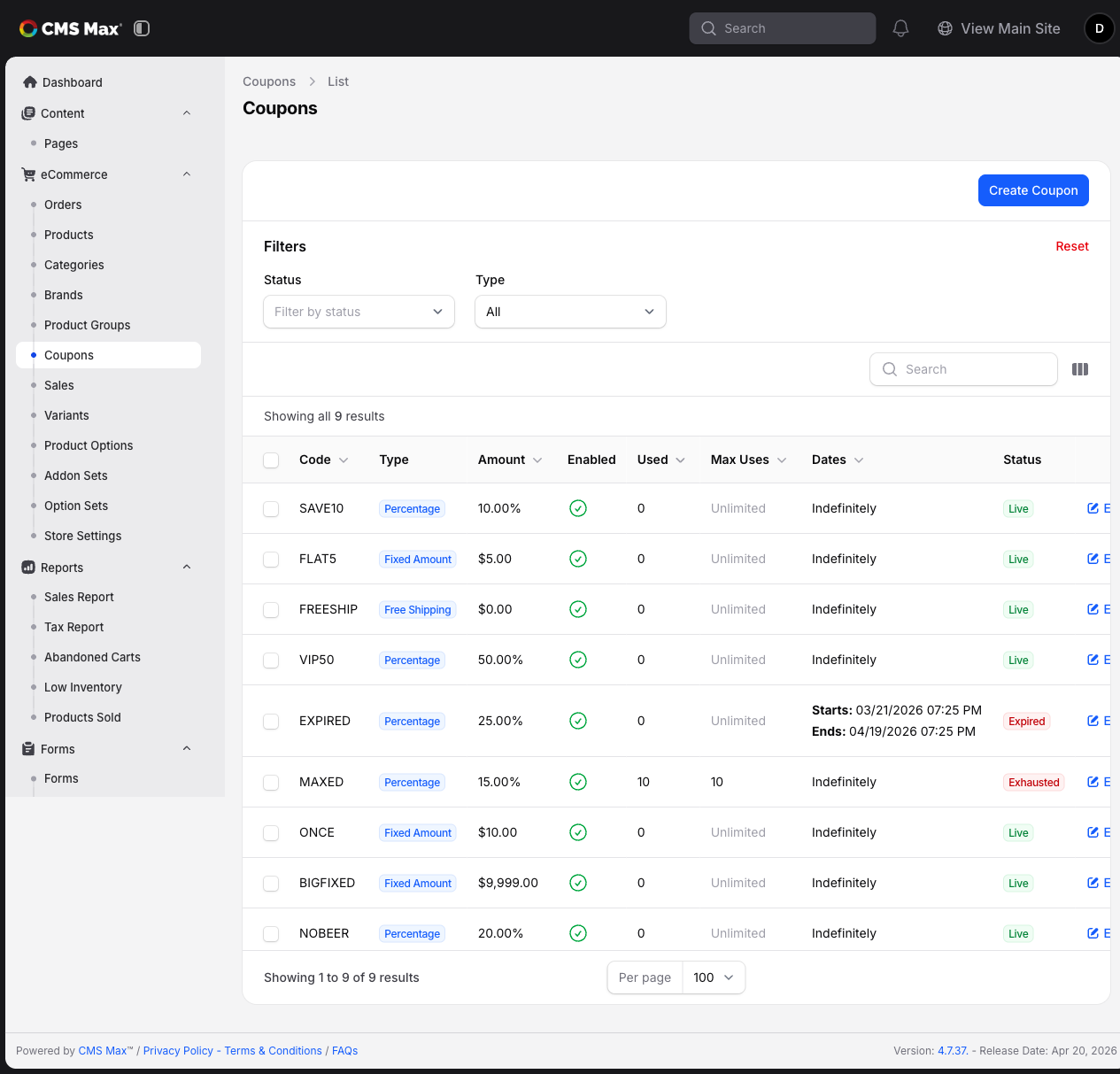
The eCommerce > Coupons list shows all of your coupons by default — including expired, upcoming, and disabled ones — so nothing gets lost from a past sale. Use the Status filter to narrow the list (for example, to just Live coupons) when you need to.
Creating a Coupon
- Navigate to eCommerce > Coupons.
- Click Create Coupon.
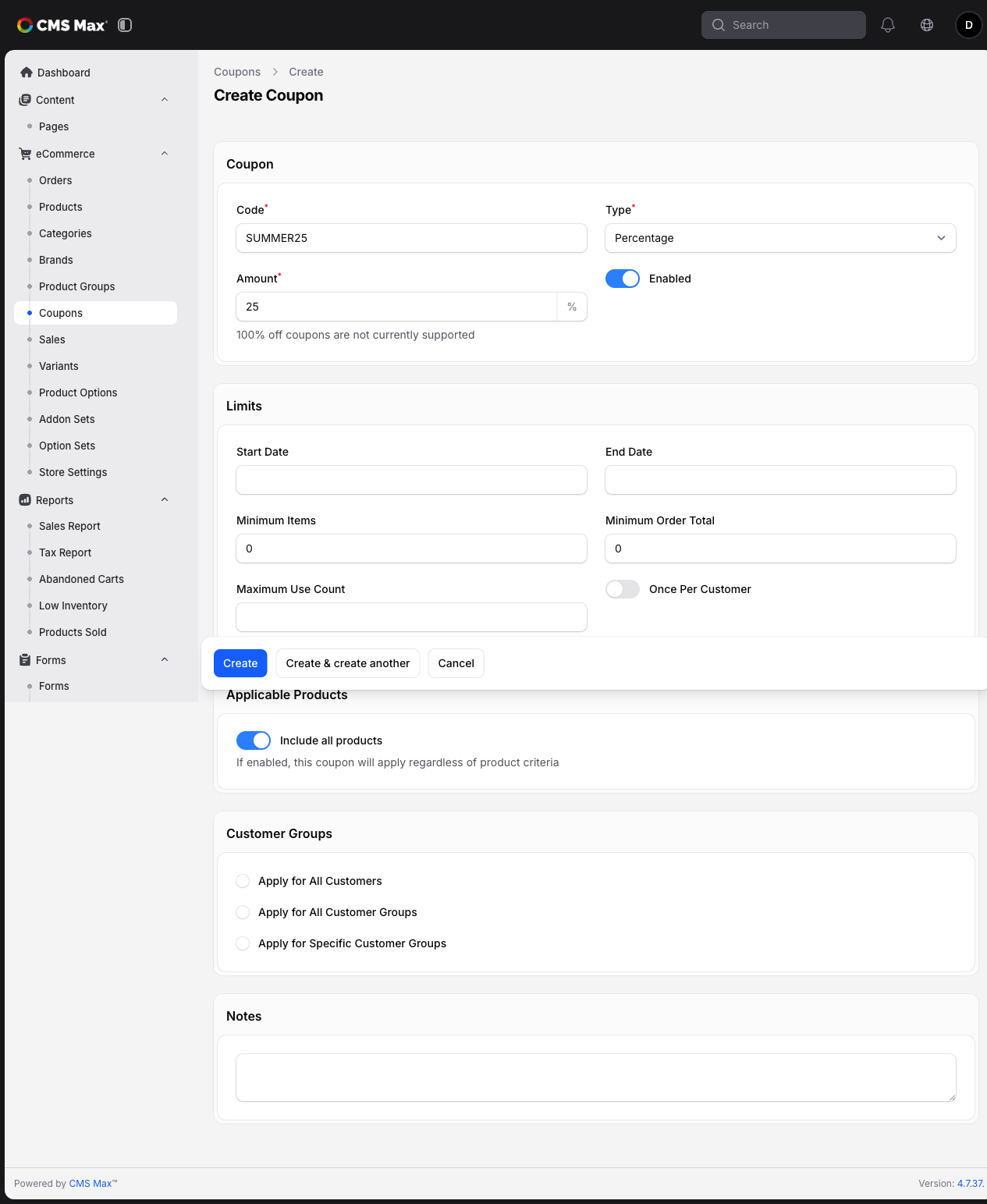
- Fill in the required fields:
- Code — the text customers type at checkout (automatically converted to uppercase)
- Type — choose Fixed Amount, Percentage, or Free Shipping
- Amount — the discount value (dollars for Fixed, percent for Percentage; not used for Free Shipping)
- Enabled — toggle on to make the coupon active
- Optionally configure restrictions in the Limits section.
- Optionally configure product targeting in the Applicable Products section.
- Click Create.
Coupon Types
| Type | What It Does | Example |
|---|---|---|
| Fixed Amount | Subtracts a specific dollar amount from the order | $10 off |
| Percentage | Subtracts a percentage of the applicable items' total | 25% off |
| Free Shipping | Removes the shipping cost entirely | Free shipping |
Important: Percentage discounts are capped at 99%. If you need a coupon that makes an order completely free, contact support — this feature is on the roadmap.
Restrictions
Date Range
Set Start Date and/or End Date to control when the coupon is valid. A coupon outside its date range shows as "Upcoming" or "Expired" in the admin list and will be rejected at checkout.
Minimum Order Total
Set Minimum Order Total to require a minimum cart value before the coupon can be applied. Only products that the coupon applies to count toward this minimum (see Product Criteria below).
Minimum Items
Set Minimum Items to require a minimum number of qualifying items in the cart.
Usage Limits
- Maximum Use Count — the total number of times this coupon can be used across all customers. Once reached, the coupon's status changes to Exhausted (shown as a red badge in the admin list) and it is automatically rejected at checkout.
- Once Per Customer — when enabled, a customer's email address can only use this coupon once, regardless of whether they check out as a guest or logged-in user.
Product Criteria
By default, a coupon applies to all products in the cart (Include all products is on). You can target specific products by turning this off and adding criteria:
Include Criteria
Add products, brands, or categories to the include list. The coupon will only apply to items that match at least one include criterion.
Exclude Criteria
Add products, brands, or categories to the exclude list. Matching items will never receive the discount, even if they also match an include criterion.
Important: Excluded products are fully ignored — they do not count toward the minimum order total or minimum items requirement. This prevents situations where a large excluded item in the cart could trick the system into granting a discount on a small qualifying item.
Match any or all include criteria
When you have more than one include criterion, the Products must match setting controls how they combine:
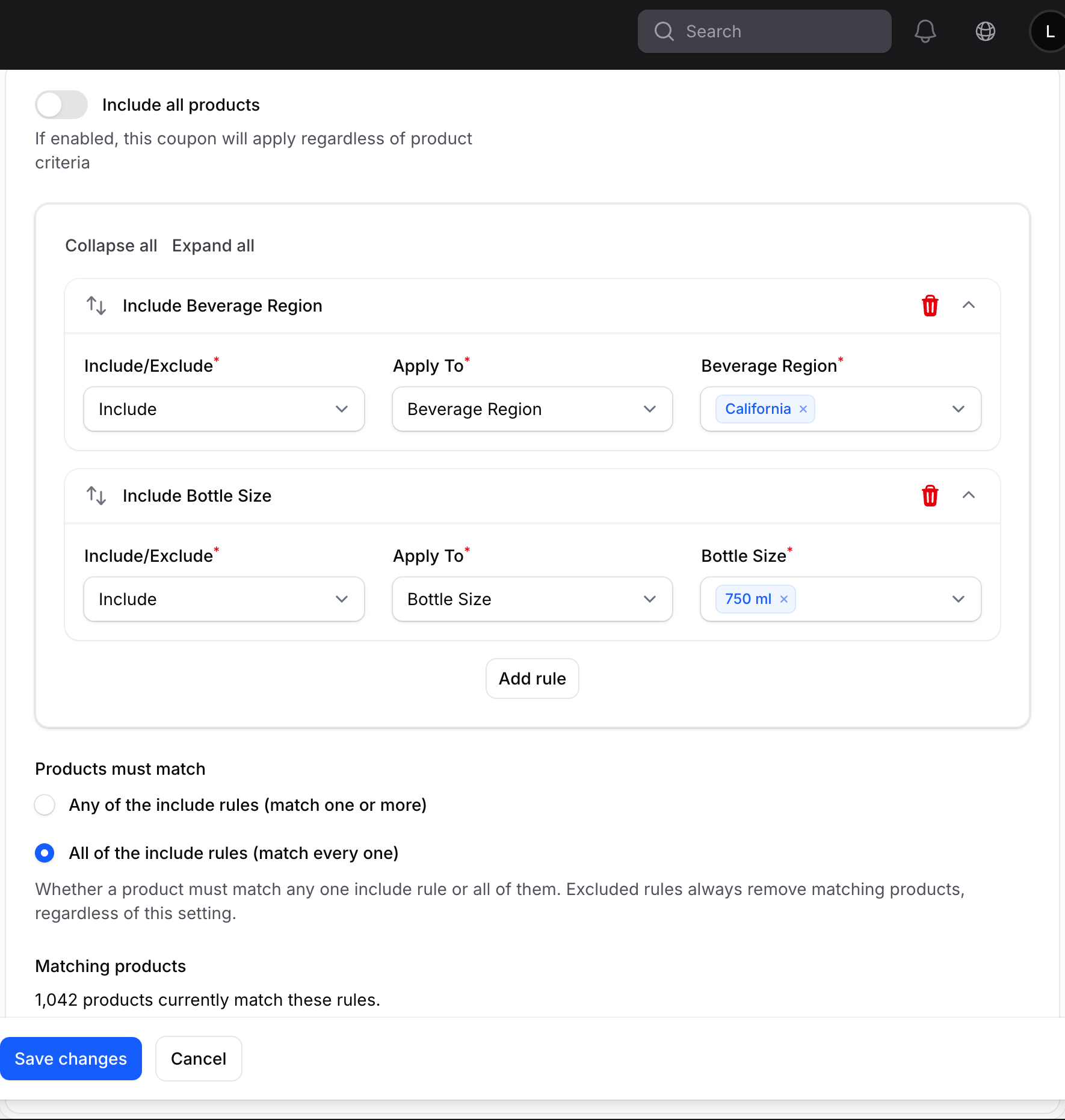
- Any of the include rules (match one or more) — the default. A product qualifies if it matches at least one include rule. For example, "Wine Region = California" plus "Bottle Size = 750 ml" applies to every California product and every 750 ml product.
- All of the include rules (match every one) — a product must match every include rule to qualify. With the same two rules, the coupon now applies only to products that are both from California and 750 ml — a precise way to combine independent attributes (for example, "California wines" = Beverage Type is Wine and Wine Region is California).
Excluded rules always remove matching products regardless of this setting. When you pick multiple values for the same criterion (e.g. two wine regions), a product matching either value still counts — "match all" applies across different criteria, not within one.
How Criteria Interact
- If Include all products is on, the coupon applies to everything (excludes still override).
- If it's off, only items matching your include criteria qualify — combined with any or all as set above.
- If it's off and you only add excludes, the coupon applies to all items except excluded matches.
- Excludes always win — if a product matches both an include and an exclude criterion, it's excluded.
- Category criteria include subcategories automatically. Selecting "Beer" also covers "IPA", "Stout", etc.
Beverage criteria (LiquorMax)
If the LiquorMax plugin is active, the include and exclude lists gain extra criteria for beverage attributes — Beverage Type (wine, beer, spirits, etc.), Wine Region, Wine Country, Wine Subregion, and Bottle Size. For example, a coupon can be limited to wines from California and Napa Valley, or exclude everything from New York. These behave exactly like product, brand, and category criteria (includes widen the match, excludes always win) and can be combined with them freely — and with the Products must match: all setting above you can target an intersection like "all Wine from California".
Inactive criteria
When a criterion's plugin is deactivated, its existing rules remain visible with a plugin inactive label. Their Include/Exclude selectors are disabled, and saving other coupon changes preserves their modes and selected values. Reactivate the plugin to edit those rules, or change Apply To to an available criterion to replace a rule. You can still delete inactive rules or turn on Include all products to clear the criteria.
Previewing which products a coupon applies to
While editing a coupon, use Preview matching products to see the exact list of products the current criteria apply to, with a Matched by column showing which include rule qualified each one — a quick way to confirm your criteria before saving.
How Customers Use Coupons at Checkout
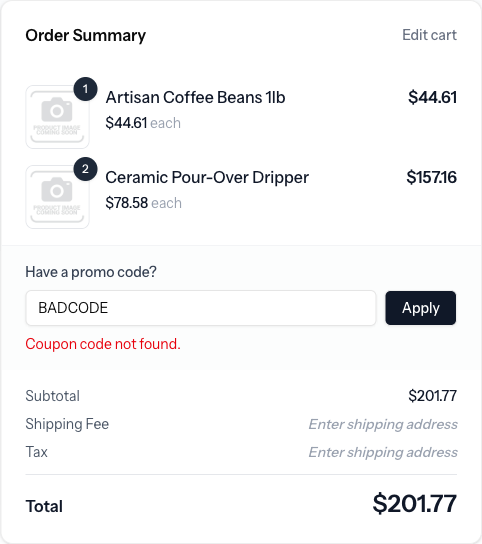
The checkout page shows a "Have a promo code?" input inside the order summary. Customers type their code and click Apply.
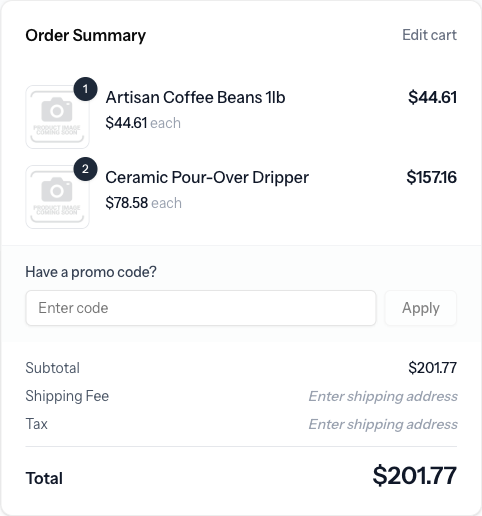
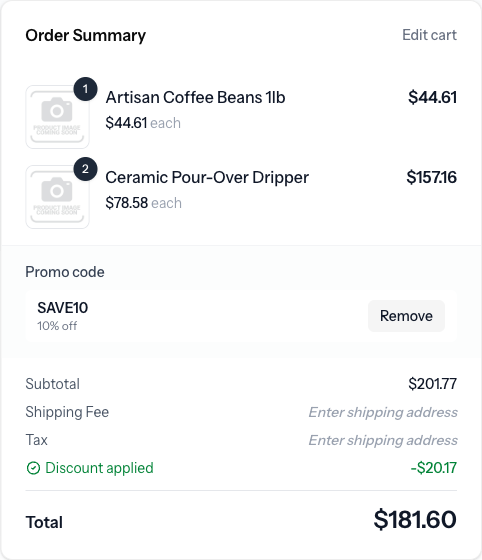
When a code is valid, the discount is applied immediately — the coupon badge shows the code and a short description, a green "Discount applied" line appears in the totals, and the total drops by the discount amount.
When a code is not valid (misspelled, expired, usage limit reached, minimum not met, etc.) the order summary displays the specific reason inline below the input. The customer's cart is untouched and they can try another code.
Customers can remove an applied coupon at any time by clicking Remove, which clears the discount and returns the input so they can try a different code. Only one coupon can be applied per order.
Viewing Coupon Performance
Navigate to Reports > Sales Report and click the Coupon usage tab to see daily breakdowns of which coupons were used, how many times, and the total discount amount.
You can also see how many times each coupon has been used directly in the eCommerce > Coupons list (the "Used" column).
Frequently Asked Questions
Can I stack multiple coupons on one order?
Not currently — only one coupon can be applied per order. Multiple-coupon support is planned for a future update.
What if the cart has both eligible and ineligible items?
The coupon still applies — it just discounts only the eligible items. If a cart holds one product the coupon covers and one it doesn't, the discount is calculated on the eligible product's amount only, and the customer checks out normally with the ineligible item at full price. A coupon is rejected on this basis in just one case: when none of the cart's items are eligible. (Percentage and fixed discounts both work this way — a fixed discount is also capped at the eligible items' total, so it never spills onto ineligible items.)
Can a coupon make an order completely free?
Not currently. The system will reject a coupon if it would bring the order total to $0. Full free-order support is on the roadmap alongside a test/sandbox payment option.
What if a coupon expires while a customer is checking out?
The customer sees a clear message that the coupon is no longer valid. They can continue with their order at the full price or try a different code.
Why doesn't my coupon apply?
Common reasons:
- The coupon is disabled or outside its date range
- The usage limit has been reached
- The customer has already used a once-per-customer coupon
- The cart doesn't meet the minimum order total or minimum items (remember: only qualifying products count toward minimums)
- The products in the cart don't match the coupon's include criteria, or every cart item matches an exclude criterion
Why are my coupon codes always uppercase?
Coupon codes are automatically converted to uppercase when saved. This ensures customers don't need to worry about capitalization at checkout — "save20", "Save20", and "SAVE20" all work the same way.