Google Merchant Center
Publish your product catalog to Google so shoppers can find your products across Google Search and Shopping.
Overview
The Google Merchant Center plugin connects your CMS Max product catalog with Google, making your products visible to shoppers across Google's search properties and shopping services. Once active, your product details — including pricing and availability — are automatically kept up to date in Google's systems.
What This Plugin Does
- Keeps your product data current — pricing, availability, and product details stay in sync with Google, so customers always see accurate information
- Expands your reach across Google — your products can appear through multiple Google platforms and services, not just standard search results
- Enables both paid and unpaid visibility — products can be discovered through Google Shopping ads as well as free product listings
Benefits for Your Store
When customers search for products on Google, your listings appear with accurate details directly in the search experience. This reduces the chance of customers arriving at your site only to find different prices or out-of-stock items than what was shown.
The plugin also makes your products eligible for Google Shopping Actions, expanding where customers can discover and purchase from your store.
Getting Started
To enable the Google Merchant Center plugin, navigate to Settings > Plugins in your admin panel, locate Google Merchant Center, and click Install.

Connecting Your Google Account
After installation, the plugin page displays a Google OAuth widget. Click the button to sign in with your Google account and authorize CMS Max to manage your Merchant Center data.
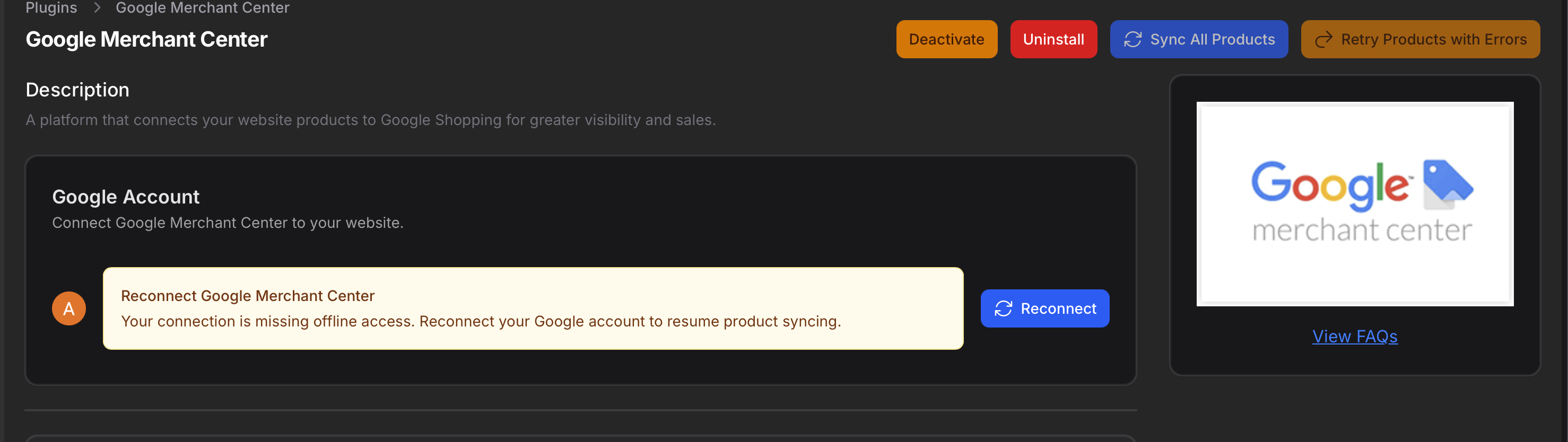
If the page shows Reconnect Google Merchant Center, the stored Google connection is missing offline access and product syncing is paused. Disconnect and connect the Google account again to grant the required access before syncing products.
Linking Your Merchant Center ID
Once authenticated, a Google Merchant Center ID field appears. Enter the numeric ID found in the top-right corner of your Google Merchant Center account and click Link to connect.
Syncing Products
After linking, two actions become available in the page header:
- Sync All Products — starts a background sync of your entire eligible product catalog to Google Merchant Center
- Retry Products with Errors — retries only the products that failed during the last sync
A progress widget displays sync status, including completed count, errors, and links to fix individual products.
Sync actions are available only when the Google connection includes offline access, the Merchant Center ID is linked, and no other sync is running.

Merchant Listing Schema Settings
The plugin also controls the extra Google Merchant Listing structured data emitted on product pages.
When the plugin is installed and active, product offer schema can include:
- A return policy, including return window, return method, and who pays return fees
- Shipping details, including shipping rate plus handling and transit day ranges
Product offer schema is emitted only when a product has a visible positive price. Products that hide pricing, such as alternative-buy products that require inquiry, do not emit Product offer schema because Google Merchant Listings require a price.
These settings live in the Google Merchant Center plugin settings and apply to the product offers schema output used for Google merchant listing validation.
What the Settings Control
merchant_return_policy_categorychooses whether returns are accepted for a fixed window, accepted without a time limit, or not permittedmerchant_return_dayssets the return window in days when the policy uses a finite return windowmerchant_return_methodcontrols whether returns are by mail, in store, or at kioskmerchant_return_feescontrols whether returns are free, customer-paid, or subject to restocking feesmerchant_shipping_ratesets the shipping amount used in structured datashipping_handling_min_daysandshipping_handling_max_daysdefine the handling-time range before dispatchshipping_transit_min_daysandshipping_transit_max_daysdefine the transit-time range after dispatch
If the plugin is not installed or not active, this extra offer metadata is not emitted.