User
A11y Max
A11y Max scans your website for accessibility issues and reports a 0–100 score, modeled on the Lighthouse accessibility score.
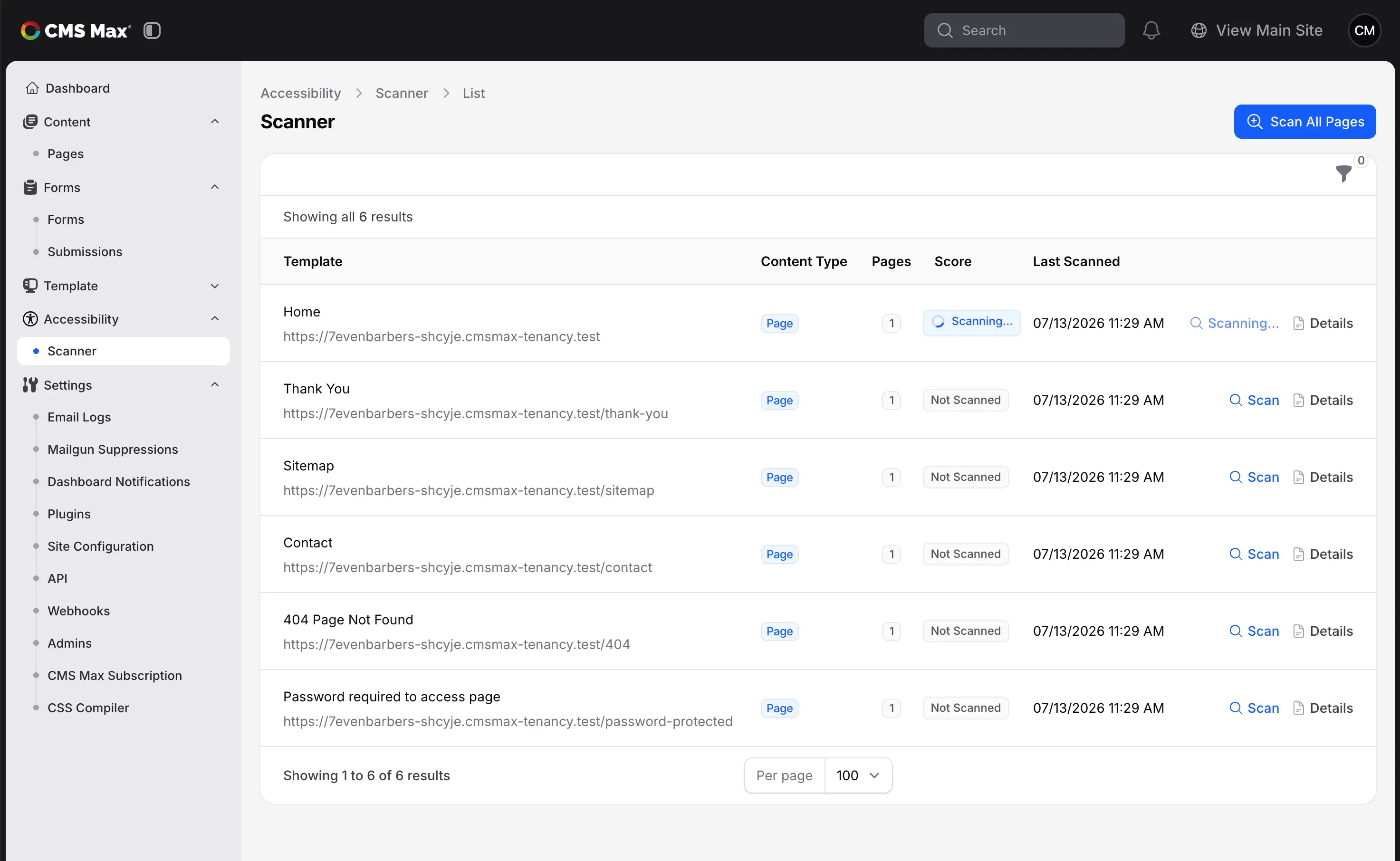
Instead of scanning every page — a large store can have thousands — A11y Max groups pages by the template they're built from. Every product, for example, is usually built from the same product template, so scanning one product page tells you about all of them. The Scanner lists one row per template and shows how many pages each one covers.
Activating the plugin
- Go to Settings → Plugins in your admin panel.
- Find A11y Max and click Activate.
- The Accessibility → Scanner menu item appears in the left navigation.
How templates are grouped
- Products, blog posts, categories, and other repeated content collapse to one row per template. If you have 1,495 products built from the same template, they appear as a single Products row covering 1,495 pages.
- Pages are listed individually, because each page is built by hand and its accessibility depends on its own content.
- The Pages column shows how many pages a row stands in for.
- Content the public can't reach is left out entirely — drafts, pages set to logged-in users only, password-protected pages, and anything scheduled to publish later. A11y Max looks at your site exactly the way an anonymous visitor does, so those pages would only ever produce a "not found" or a login prompt. They reappear on the list once you publish them; use Sync Templates to pick them up right away.
Scanning
You can scan one template at a time, or scan everything at once:
- Scan a single template: click the Scan button on a row. The representative page is queued for scanning in the background.
- Scan all templates: click Scan All Pages at the top. A11y Max queues one scan per template and the table updates automatically as results come in.
When a scan completes, the Score column updates with a color-coded badge:
- Green (90–100): excellent accessibility.
- Yellow (70–89): moderate issues, should be addressed.
- Red (0–69): significant issues that hurt usability.
- Not Scanned (gray): this template has not been scanned yet.
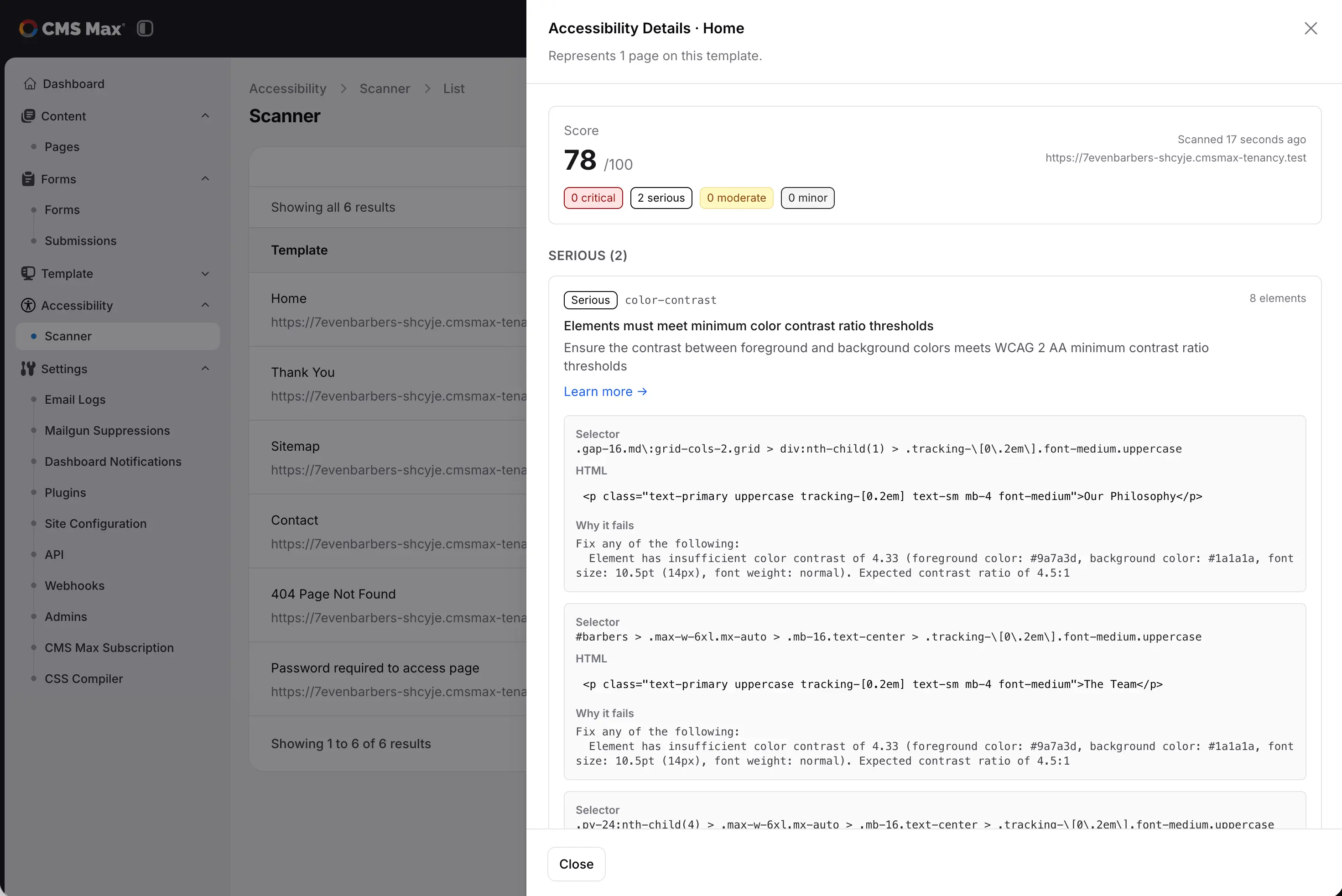
Click Details on a scanned row to see exactly which rules failed and the affected elements.
If a scan can't complete — the page returned an error, or took too long to load — A11y Max retries it once and then records what went wrong. The row stops showing "Scanning…" and Details explains the reason, so a failed scan is never mistaken for a good score.
Reading the score
The score is computed by weighting each accessibility rule by severity (critical=10, serious=7, moderate=3, minor=1) and dividing the weight of passing rules by the weight of all applicable rules. Rules that need manual review (axe incomplete) are excluded from the score. You can learn more details about the score by clicing the Details button on a scanned row.
What a template scan does and does not catch
A template scan audits one real, representative page, so it reliably catches issues that come from the template itself — color contrast, landmarks, heading structure, navigation, and so on. It does not guarantee that every individual page is issue-free: a problem unique to one page's own content (for example, a single product image missing alt text) may not appear if that page isn't the representative. The trade-off is deliberate — it lets you audit a 1,500-page site in a handful of scans.
Next: fixing what it finds
Once you have a score and a list of failed rules, Fixing Common Issues covers the problems that come up most often on tenant sites — contrast on image backgrounds, icon-only buttons with no accessible name, targets that are too small to tap — with the patterns that fix them.