Sales Tax
Configure where your store collects sales tax, set per-product tax codes, and view tax reports.
Overview
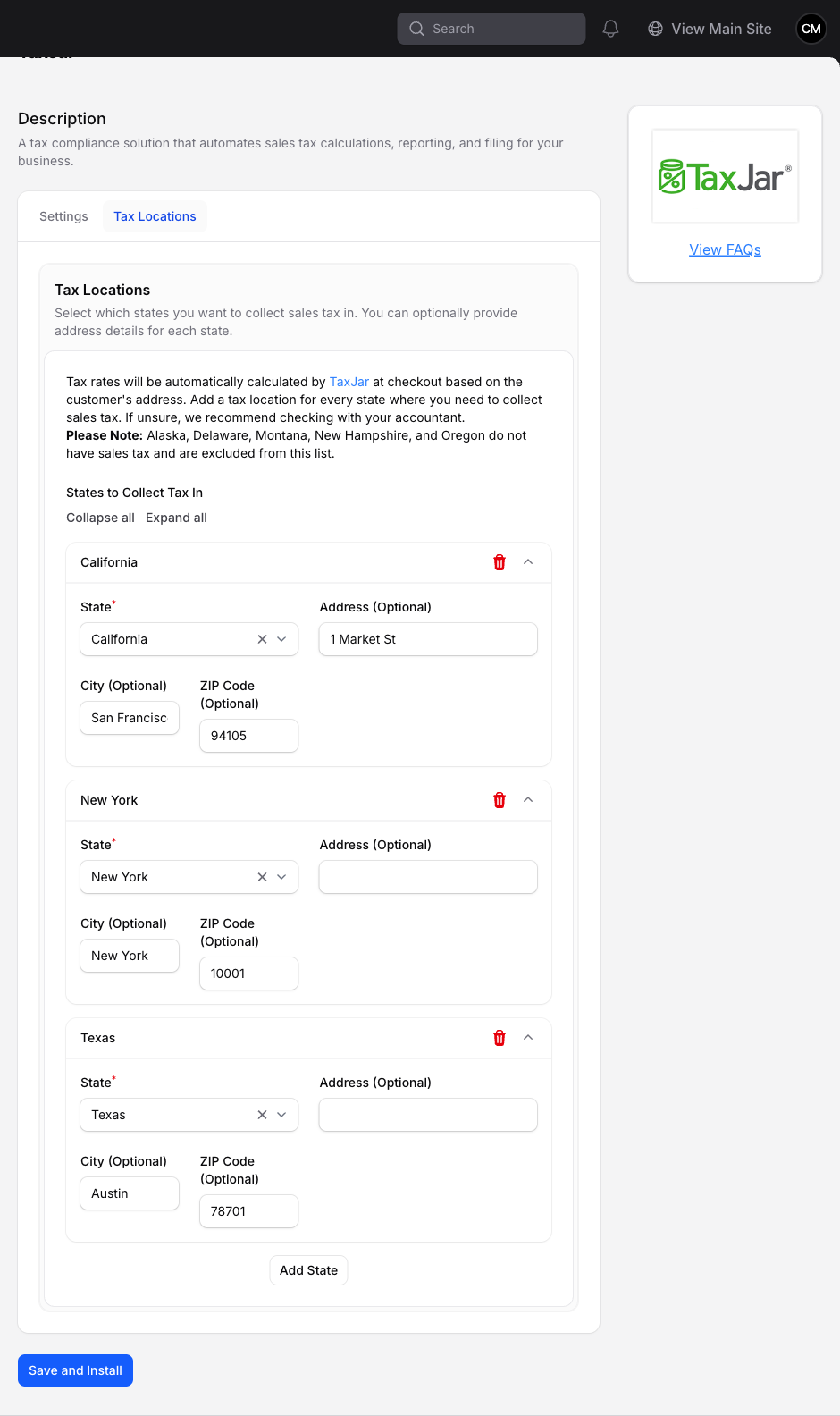
CMS Max supports two ways to calculate sales tax at checkout: Fixed Tax Rate, which uses a per-state rate, and TaxJar, which looks up address-level rates in real time. In either mode, you select the states where you collect tax (your tax locations or nexus). In Fixed Tax Rate mode, you can enter your own rate or leave it blank to use the state-average default.
Five US states don't charge sales tax at all (Alaska, Delaware, Montana, New Hampshire, Oregon). Orders shipping to those states never have tax applied.
How Tax Is Calculated
Sales tax is based on the delivery address, not the billing address. The law follows where the goods end up.
For each fulfillment method:
| Method | Tax based on |
|---|---|
| Shipping | Customer's delivery address |
| In-Store Pickup | Store's address |
| Curbside Pickup | Store's address |
| Local Delivery | Customer's delivery address |
| DoorDash | Customer's delivery address |
Tax is only applied if the destination state is in your Tax Locations. If a customer in a state you don't have nexus for checks out, their tax is $0.
Coupons and tax
When a customer applies a coupon at checkout:
- Fixed-amount and percentage coupons reduce the taxable subtotal. Customers pay tax on the discounted amount.
- Free-shipping coupons only reduce the shipping cost. Item tax is unchanged, but tax on shipping (in states where shipping is taxable) becomes $0.
Configuring Tax Locations and Rates
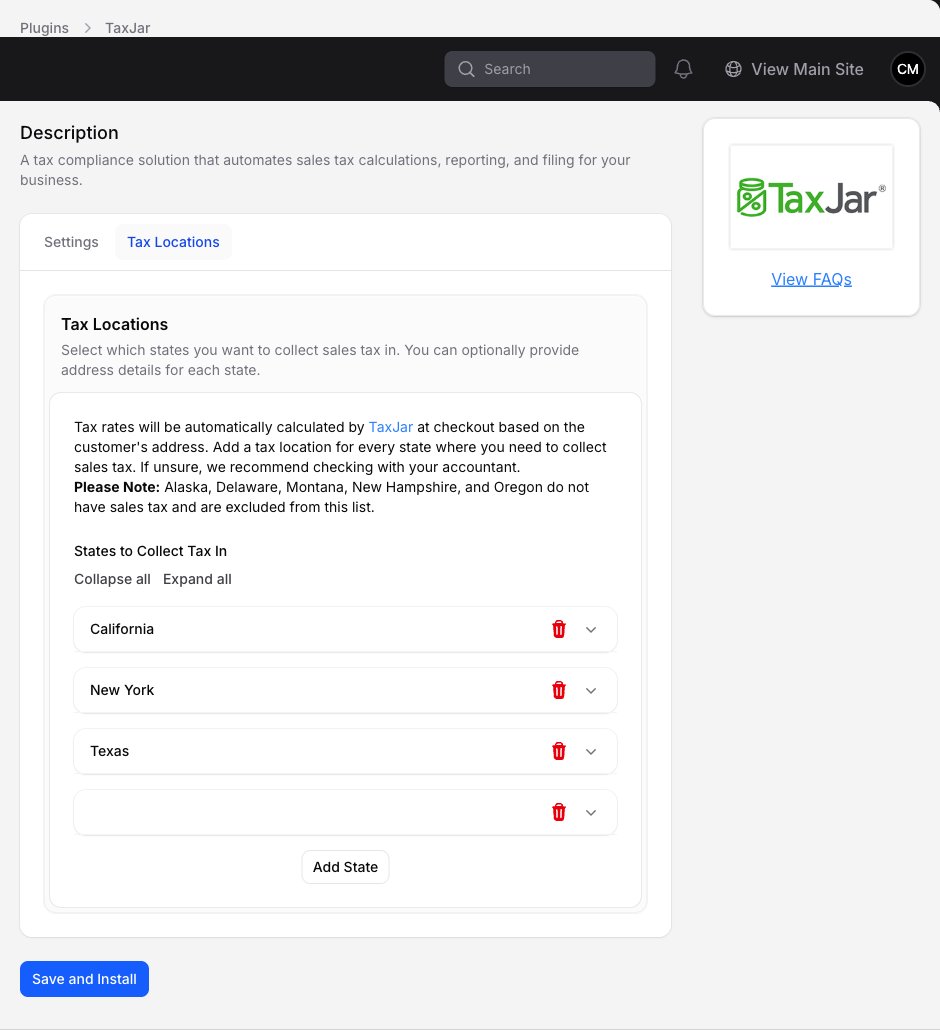
Every state where you have a physical or economic nexus must be selected as a tax location. Fixed Tax Rate mode also lets you override the state-average default.
- Navigate to eCommerce > Store Settings.
- Open Store Information.
- Scroll to the Tax section.
- Choose Fixed Tax Rate or TaxJar under Tax calculation method.
- Select every applicable state under States where you collect tax.
- In Fixed Tax Rate mode, enter any overrides in Tax Rates, or leave a field blank to use the displayed state-average default.
- Click Save.
Note: On multi-store sites, open eCommerce > Stores, edit any store, and scroll to Tax. These tax settings apply to the entire site, not only that store.
Important: Forgetting to select a tax location means no tax is collected for that state. Customers there see $0 tax and your store accrues an uncollected liability. Tax is only collected in the states you select here.
Quick Start: Use Your Store's State
Turn on Use store address as tax origin in the Tax section, then save. Every US store's state is automatically added to your tax locations with the state-average rate, so customers in those states immediately see tax applied. You can enter an override afterward if needed.
Automatic Economic-Nexus Collection
If your sales grow and cross a state's economic-nexus threshold (e.g., $500k in California), the system automatically enables tax collection for that state — it's added to your Tax Locations and collection starts on the next order shipped there.
If you believe you do not have a tax obligation in a state that was auto-enabled, remove it from the Tax section of Store Settings; it will not be auto-enabled again even if your sales stay above the threshold.
Thresholds are set by law and update automatically — you don't configure them. When your sales exceed a state's threshold, tax collection starts automatically to keep you compliant.
Pickup Location
If your store offers In-Store Pickup or Curbside Pickup, customers who choose those methods are taxed at your store location. The address on the Store settings page determines the tax rate — not the customer's delivery address.
Note: Pickup orders still need the store's state in your Tax Locations list in order to collect tax. For example, if your store is in California, make sure California is selected under States where you collect tax.
If you have multiple stores, make sure the primary store address is correct.
Product Tax Codes
Most items are fully taxable and use TaxJar's default rate. Some categories are taxed differently by state — groceries might be exempt, clothing might have a threshold in New York, SaaS might be untaxed in some states. TaxJar provides tax categories with standardized codes for these cases.
Set a default
The default product tax code applies to every product that doesn't have its own override.
- Navigate to Settings > Plugins > TaxJar > Settings.
- Under Default Product Tax Category, search and select the category that best describes the majority of your catalog.
- Click Save and Install.
Leave the default blank to treat everything as fully taxable (TaxJar's general category).
Override per product
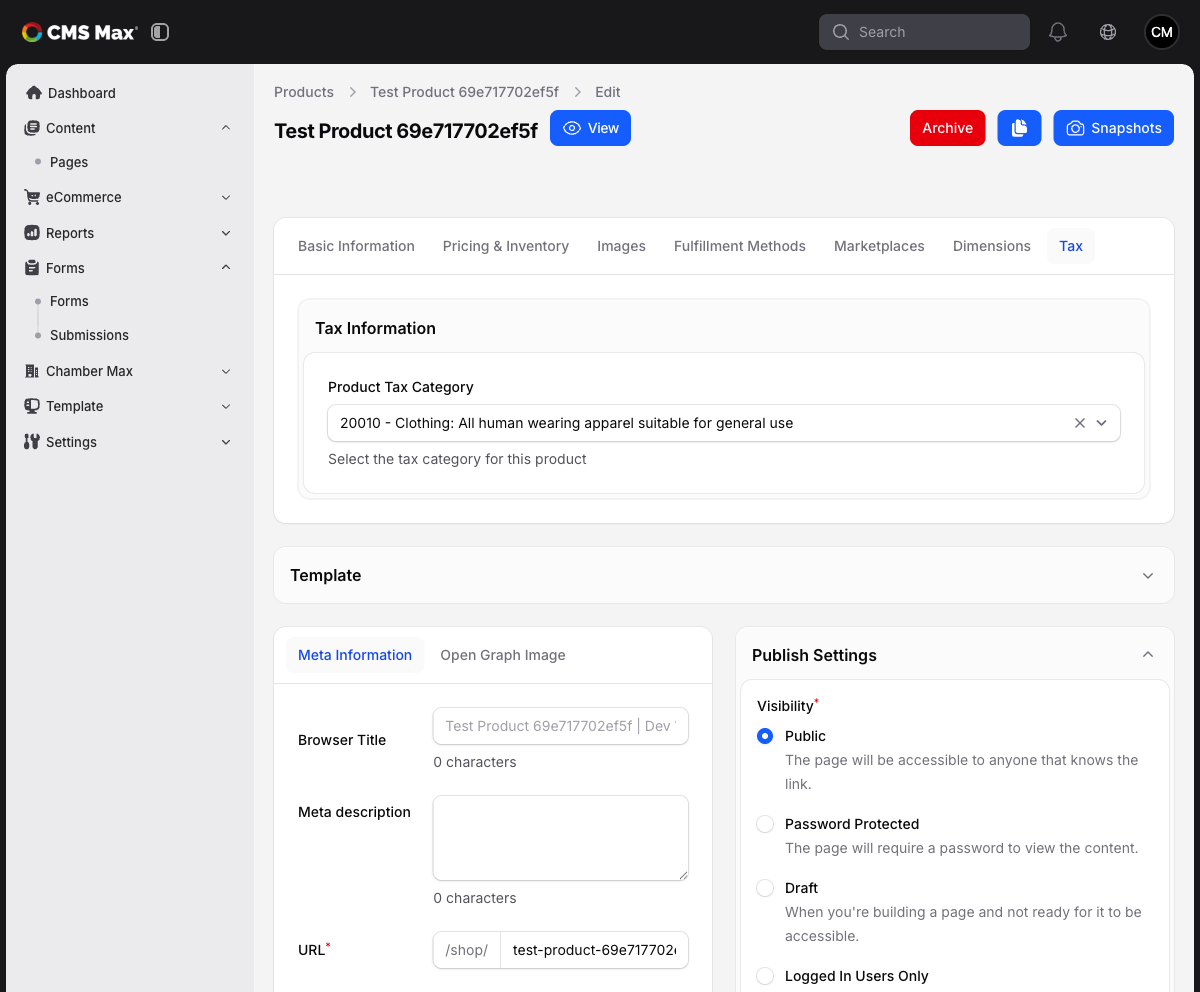
- Navigate to eCommerce > Products, then open a product.
- Click the Tax tab.
- Choose a Tax Setting:
- Default Settings — use the store-wide default product tax category (above). This is the default.
- Custom Product Tax Category — assign a specific TaxJar category from the list.
- Tax Exempt — mark the product as not subject to sales tax. Exempt products are excluded from TaxJar entirely: they don't contribute to the taxable amount, they don't appear in TaxJar's order records, and they don't affect tax on the rest of the cart. A cart of only exempt products collects $0 tax and skips the TaxJar API call altogether.
- Click Save.
Bulk update product tax settings
Use eCommerce > Products to select products, then choose Bulk Edit. From there you can either:
- Show the Tax Setting column for per-product edits.
- Use Apply Tax Settings to All to apply one tax setting across the current filtered result set.
Reports
Navigate to Reports > Tax Report and choose the view that matches your question:
- Sales by State groups paid checkout orders by destination city inside collapsible US shipping or delivery states. It shows order count, subtotal, shipping, discounts, tax collected, and order total for each city and state. State groups stay collapsed after filtering so the state summary remains visible first; click a group to expand its city breakdown. This is the view to use for total sales delivered to a state, including orders calculated with either TaxJar or a fixed tax rate.
- Tax by Jurisdiction shows the TaxJar tax breakdown by state, county, city, or special district. Use this view for tax-filing detail, not total sales delivered to a state.
The date filter defaults to the last 30 days. Choose Last 30 days or Last 12 months as a quick range, or enter custom dates.
When a state's cities span multiple pages, each page shows the full state total for your selected filters.
You can also open any completed order in the admin to see its per-jurisdiction tax breakdown on the order detail page (state, county, city, special district).
Note: Fixed-rate orders do not contain TaxJar jurisdiction rows, so they appear in Sales by State but not Tax by Jurisdiction.
TaxJar Account Types
CMS Max ships with TaxJar access built in. By default, your store uses the shared CMS Max TaxJar account (the free tier) — no setup needed, limited to 100 orders/month across the TaxJar API.
If your volume exceeds that (or you want your own TaxJar account for AutoFile or reporting), switch to your own key:
- Navigate to Settings > Plugins > TaxJar > Settings.
- Change Account type to a paid/own-account option.
- Paste your TaxJar API Key.
- Click Save and Install.
See the TaxJar plugin guide for the full difference between free and own accounts, and for AutoFile.
FAQ
Why is tax showing as $0 for some customers?
Likely causes: (a) their state isn't selected under States where you collect tax in Store Settings; (b) they're in a non-taxing state (AK, DE, MT, NH, OR); (c) the product has a tax-exempt tax code. Check the order's tax breakdown on the admin order page.
Why does tax change when a customer picks a different shipping method?
Tax is based on the delivery address and shipping cost. If a shipping method uses a different destination (e.g. pickup at the store) or changes the shipping total, tax recomputes. Some states tax shipping; some don't.
What happens if TaxJar's API is down?
The system falls back to a per-state rate stored in CMS Max. Customers still see tax; rates are state-level averages so they may be slightly off from the exact city/county rate. We recover automatically once TaxJar responds.
How are coupon discounts reflected in tax?
Fixed and percentage coupons reduce the taxable subtotal — customers pay tax on the post-discount amount. Free-shipping coupons reduce shipping only; item tax is unchanged. See How Tax Is Calculated.
Can I see what TaxJar returned for a specific order?
Yes — open the order in the admin and look at the Tax Breakdown section. It shows state, county, city, and special district amounts separately.