Shortcodes
How to embed forms, products, maps, and other interactive elements into your page content using shortcodes
Overview
Shortcodes let you embed interactive content — like forms, product listings, maps, and menus — anywhere in your page text. Instead of building these elements by hand, you insert a simple shortcode and CMS Max handles the rest, rendering the full feature when a visitor views the page.
You do not need to know any code to use shortcodes. The editor provides a visual way to insert and configure them.
Inserting a Shortcode
- Open the content editor for a page, blog post, or any other content item.
- Place your cursor where you want the element to appear.
- Click the Insert Widget button in the editor toolbar (it may also appear as an icon that looks like a puzzle piece or a grid).
- Browse or search for the widget you want to insert.
- Select it, configure any available options (such as which form or how many products to show), and confirm.
The shortcode is inserted into your content. In the editor, it may appear as a placeholder block — on your live site, it renders as the full interactive element.

Common Shortcodes
Forms
Embed a contact form, application form, or any other form directly on a page. When inserting, you choose whether the form appears directly on the page or opens in a popup when a visitor clicks a button.
Navigation Menus
Display a navigation menu within your page content. Useful for sidebar links, footer navigation, or landing pages with custom link groups.
Search Bar
Add a search input to any page, allowing visitors to search across your site's content. If the ecommerce plugin is active, search results include products.
Full Search
Add a full search results widget that searches site content from one search box. Existing widgets continue to search the same content types they did before. If the Ecommerce plugin is active, you can enable products in the widget settings and choose the product display style, price visibility, add-to-cart visibility, and whether to show only sale products.
Product filters appear when the search is focused only on product results, without removing matching pages, blog posts, or other content from mixed results pages.
Breadcrumbs
Show a breadcrumb trail so visitors can see where they are within your site's structure and navigate back easily.
Page Title
Display the current page's title as a styled heading within the content area. Useful when your layout does not automatically show the page title.
HTML Sitemap
Generate an alphabetical list of all your site's pages. Useful for adding a sitemap page for visitors.
Blog Post List
Show a list of recent blog posts anywhere on a page. Options typically include how many posts to display and whether to show images and excerpts.
Events
Show upcoming events from your Events plugin directly within a page or sidebar.
Products and Categories (Ecommerce)
Embed a product, featured product list, product category listing, or a full product search widget — each configured to show as many or as few items as you choose. Product list widgets can also hide selected variant filters from the sidebar and pin visible filters into a custom order, so one list can keep options like Size while excluding configuration-style variants.
Category listings can also use a specific set of categories in a custom order.
On a product category page, placing a Category List that shows that category's children replaces the automatic compact subcategory strip. This keeps the child links only where you positioned the widget instead of displaying a duplicate at the top of the page.
Store Locations
Display a store locator or a specific location's details within any page.
Careers / Job Openings
Show current job listings directly on any page.
Testimonials
Display a list of customer testimonials collected through your testimonials plugin.
Displaying a Form as a Popup
When inserting a form shortcode, you will be offered a choice:
- On-page — The form appears directly within the page content
- Popup/Modal — A button appears on the page; clicking it opens the form in a pop-up window
The popup option keeps your page layout clean while still giving visitors easy access to the form. You can customize the button label (for example, "Contact Us" or "Apply Now").
Editing or Removing a Shortcode
To change a shortcode you have already inserted:
- Click on the shortcode placeholder in the editor.
- Look for an edit icon or double-click to open the configuration options.
- Adjust the settings and confirm.
To remove a shortcode, click on it in the editor and press the Delete or Backspace key, or use the remove option in the shortcode menu.

Saved Widget Settings
Some widgets support saved settings. Saved settings let you define a reusable display style once, then apply it to many shortcode placements. For example, an ecommerce product list can share the same layout, sorting, pagination, and filter options across multiple pages or categories.
When a widget supports saved settings, the widget setup window includes a Default Setting field. Selecting a saved setting hides the shared display options and keeps only the fields that still need to be chosen for that specific placement, such as which category or brand to show.
To manage saved settings:
- Go to Template > Widgets.
- Open the widget you want to review.
- Use the saved settings area to create, edit, or review settings.
- Review the usage list under each setting to see where it is used.
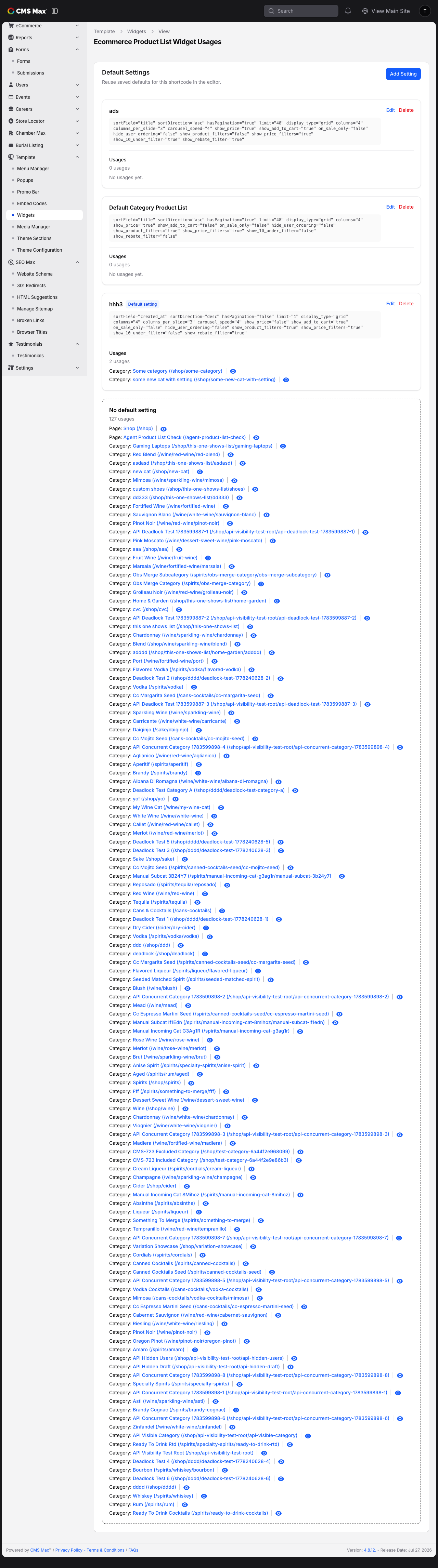
Important: A setting that is already used by pages or categories cannot be deleted until those usages are changed. This prevents live content from accidentally losing its display settings.
Default settings for new widgets
Some saved settings can be marked as the default for a widget. When a default exists, new placements of that widget automatically start with that setting selected. You can still choose a different setting or use custom options when inserting the widget.
Frequently Asked Questions
The shortcode appears as text on my live site
This usually means the shortcode was typed manually with incorrect formatting, or the relevant plugin is not active on your site. Use the Insert Widget button in the toolbar rather than typing shortcodes by hand. If the problem persists, contact support.
I cannot find the widget I am looking for
Some widgets only appear when a specific plugin is installed on your site (for example, ecommerce widgets require the Ecommerce plugin). If you expect a widget to be available, check with your site administrator to confirm the plugin is active.
Can I put a shortcode inside another shortcode?
This is not supported. Shortcodes should be placed at the top level of your content, not nested inside one another.