Layout Builder
Design custom page layouts visually using a drag-and-drop builder — no coding required.
Overview
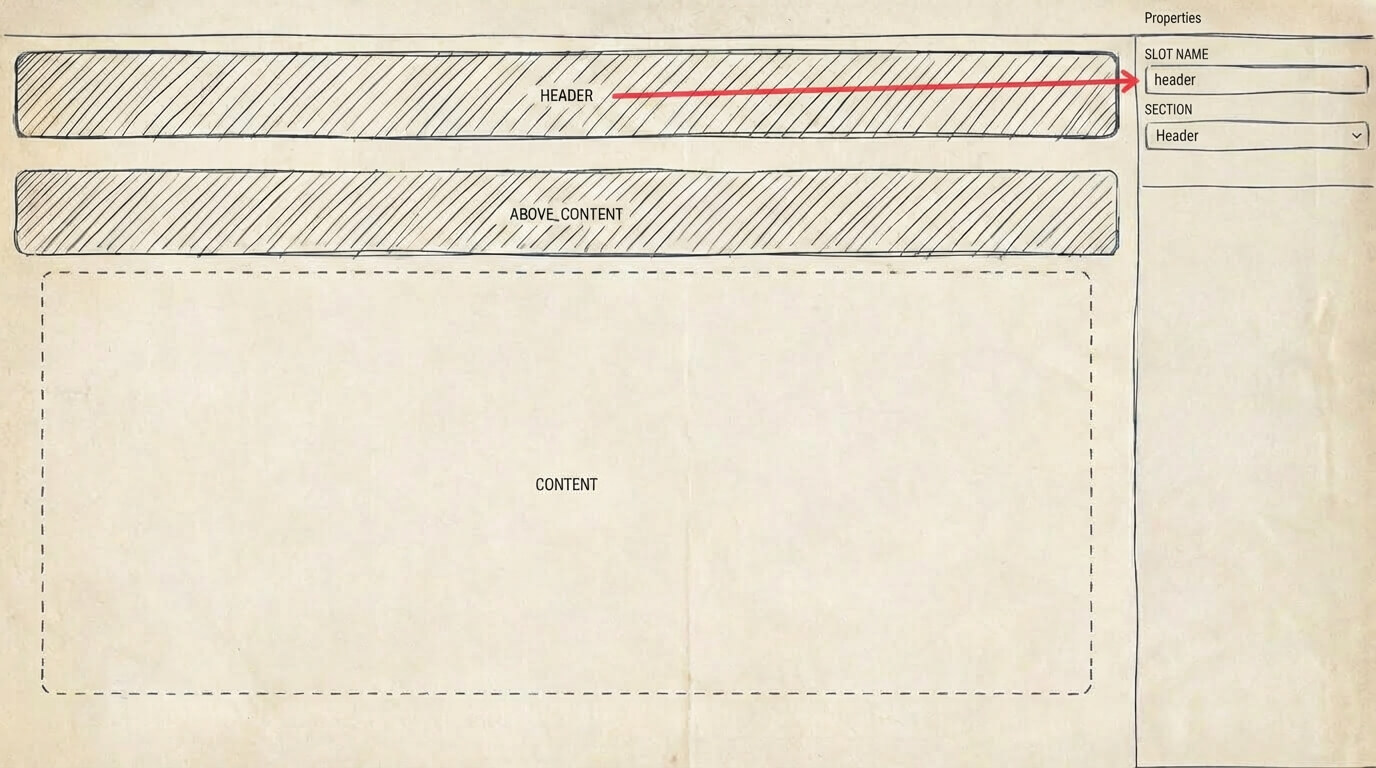
The Layout Builder lets you design the visual structure of your website pages using a drag-and-drop interface. Instead of working with a single content area, you can arrange your page into distinct sections and blocks — giving you precise control over how your content is organized and presented.
Key Concepts
- Layout — a saved arrangement of sections and blocks that can be applied to one or more pages
- Section — a horizontal row on the page, which can contain one or more blocks side by side
- Block — an individual content element within a section, such as a text area, image, button, or other content type
Creating a Layout
- Go to Layout Builder in your admin panel (found in the left menu)
- Click New Layout
- Give the layout a name so you can identify it later
- Use the drag-and-drop editor to build your layout:
- Click Add Section to create a new row
- Within each section, click Add Block to insert content elements
- Drag blocks to reorder them within a section, or drag sections to reorder the rows
- Configure each block by clicking on it and filling in its settings
- Click Save when you are finished
Editing an Existing Layout
- Go to Layout Builder in your admin panel
- Find the layout you want to change and click on it
- Make your edits using the same drag-and-drop interface
- Click Save
Changes saved to a layout will be reflected on all pages that use that layout.
Assigning a Layout to a Page
Layouts are applied from the page edit screen, not from the Layout Builder itself:
- Open the page you want to update (go to Pages and click the page title)
- Find the Layout field in the page settings
- Select the layout you want to use from the dropdown
- Save the page
The page will now display using the selected layout.
Working with Sections
Each section acts as a horizontal band across your page. You can:
- Add a section — click the button at the bottom of the layout editor or between existing sections
- Reorder sections — drag the section handle up or down
- Delete a section — click the remove button on the section (this also removes all blocks inside it)
- Configure columns — some sections let you choose how many blocks appear side by side
Working with Blocks
Blocks are the individual pieces of content inside each section. Each block type has its own settings:
- Click a block to open its settings panel and edit its content
- Drag a block to move it within a section or to a different section
- Remove a block by clicking the delete icon on the block
Tips for Effective Layouts
- Give your layouts descriptive names (for example, "Full-Width Hero + Two Columns") so they are easy to identify when assigning to pages
- If multiple pages share the same structure, assign them the same layout rather than creating a new one for each — changes to the layout will update all pages at once
- Use sections to separate distinct areas of a page, such as a hero banner, a feature list, and a call-to-action strip