Product List Settings
How to manage reusable display settings for ecommerce product list widgets and category product lists.
Overview
Product list settings let you control how ecommerce product lists appear across your site from one place. A setting can control layout, sorting, pagination, price display, subcategory links, and sidebar filters. Pages and categories that use the same setting update together when that setting changes.
This is especially useful for category pages. New categories can use the default product list setting automatically, so changing that one setting later can update product list behavior across category pages that reference it.
Managing Product List Settings
- Go to Template > Widgets.
- Open Ecommerce Product List.
- In the saved settings area, click Add Setting.
- Enter a clear Setting Name.
- Choose the display, sorting, limit, and filter options.
- Click Save.
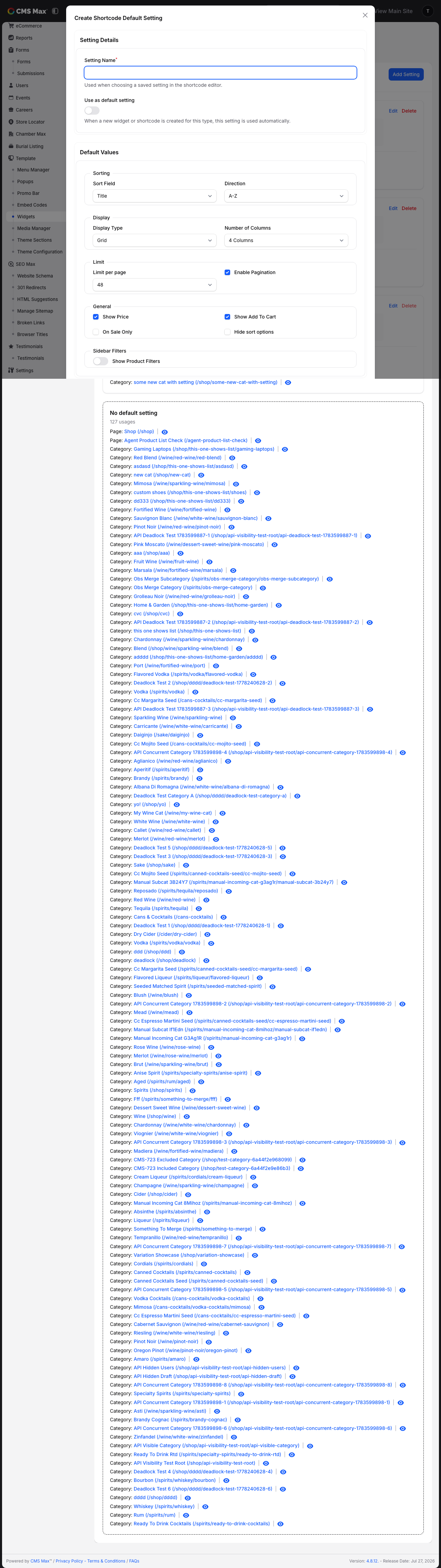
Choosing the Default Setting
Use Use as default setting when you want new product list widgets to start with that setting automatically.
Only one product list setting can be the default at a time. If you mark a different setting as the default, the previous default is automatically unset.
Tip: Give the default setting a name that explains its purpose, such as "Default Category Product List" or "Standard Product Grid".
Using Settings in the Editor
When inserting an Ecommerce Product List widget in the editor:
- Choose a Default Setting if one is not already selected.
- Fill in any placement-specific fields that remain visible, such as category, product group, or brand.
- Save the widget.
Shared fields such as layout, sorting, limit, and filters are hidden once a setting is selected. This keeps each placement small and makes future updates easier.
Category Pages
New ecommerce categories use the product list default setting when one exists. The category still controls which products are shown, while the saved setting controls how the product list is displayed.
Changing the saved setting later updates category pages that use that setting. This makes it possible to change category product list layout, sorting, pagination, or filters without editing each category one by one.
Turn off Show Subcategories when you do not want the automatic child-category links at the top of a category page. This is useful when the page has custom introductory content or its own category navigation.
This toggle remains available on an individual Product List widget when it uses a saved setting, so one category page can override the shared value without detaching the rest of its product list settings.
Usage Lists
Each saved setting shows where it is used. Usage rows include the content type, the item title, and a link to view the item on the site.
Use the usage list before editing a setting so you understand which pages or categories will be affected.
Deleting Settings
You cannot delete a setting while it is still used. First edit the pages or categories listed under that setting and move them to a different setting or custom configuration. Once the setting has no usages, it can be deleted.
Settings Reference
| Field | Description |
|---|---|
| Setting Name | The name shown when choosing a saved setting in the editor. |
| Use as default setting | Makes this setting selected automatically for new product list widgets. |
| Sorting | Controls the default product order, such as title A-Z or latest first. |
| Display | Controls whether products appear as a grid, list, or carousel. |
| Limit | Controls how many products appear at once and whether pagination is shown. |
| General | Controls product display options such as price visibility and whether category pages show child-category links. |
| Show Product Tags on Cards | Shows assigned tag values as badges on grid product cards by default. Product Tags must also be enabled in Store Settings. |
| Sidebar Filters | Controls whether shoppers can filter product lists by price or other available filters. |