User
AI Connect (MCP)
Connect AI agents like Claude — and soon GPT and Gemini — directly to your site. Once connected, an agent can create pages, edit theme sections, manage navigation menus, and update your theme configuration — all scoped to your site only, using the industry-standard Model Context Protocol (MCP).
Installing the plugin
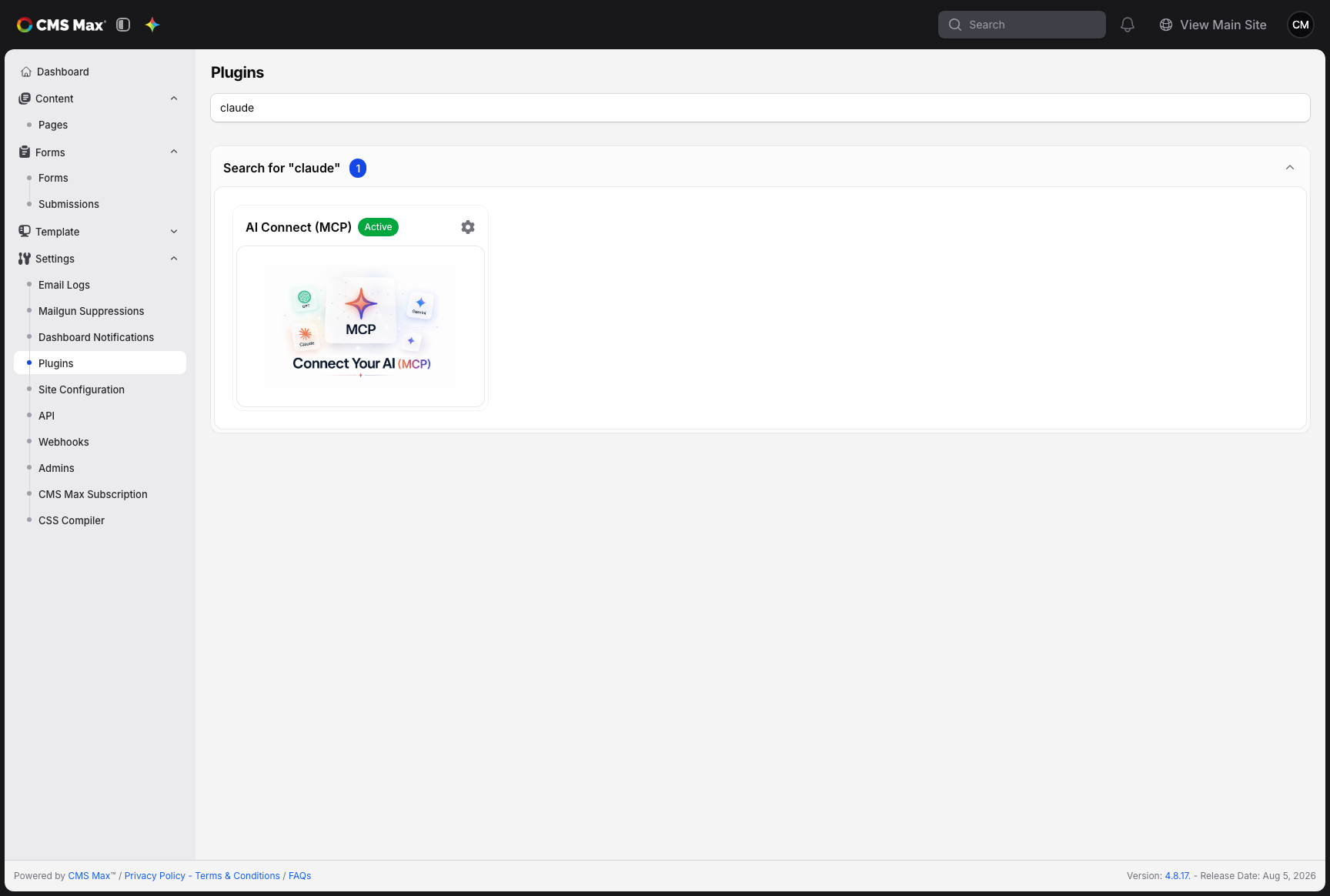
- In your admin panel, go to Settings → Plugins.
- Search for AI (or MCP, Claude, and similar) and find AI Connect (MCP).
- Click Install.
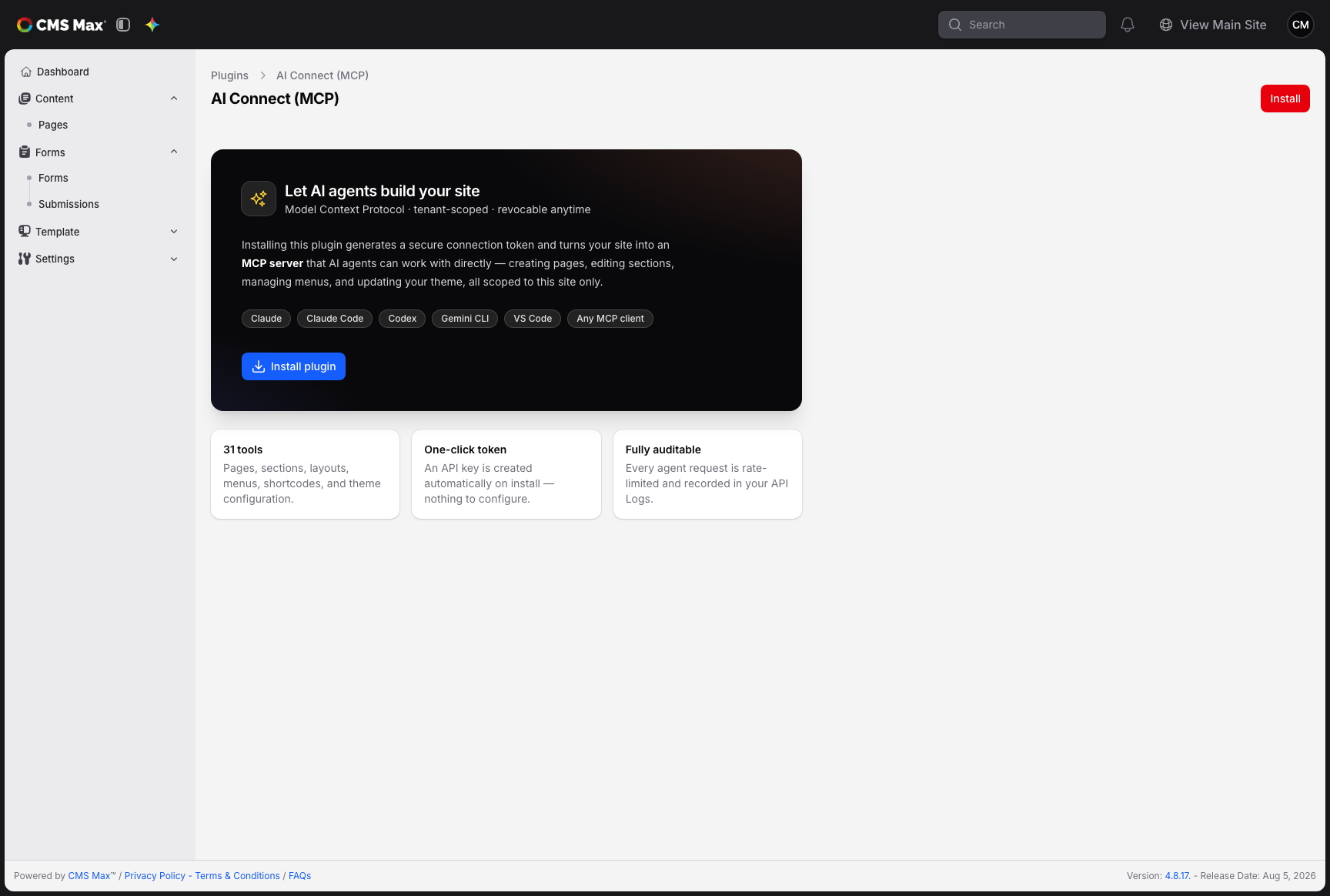
Installing automatically creates a secure connection token for you — there is nothing to configure.
Connecting Claude
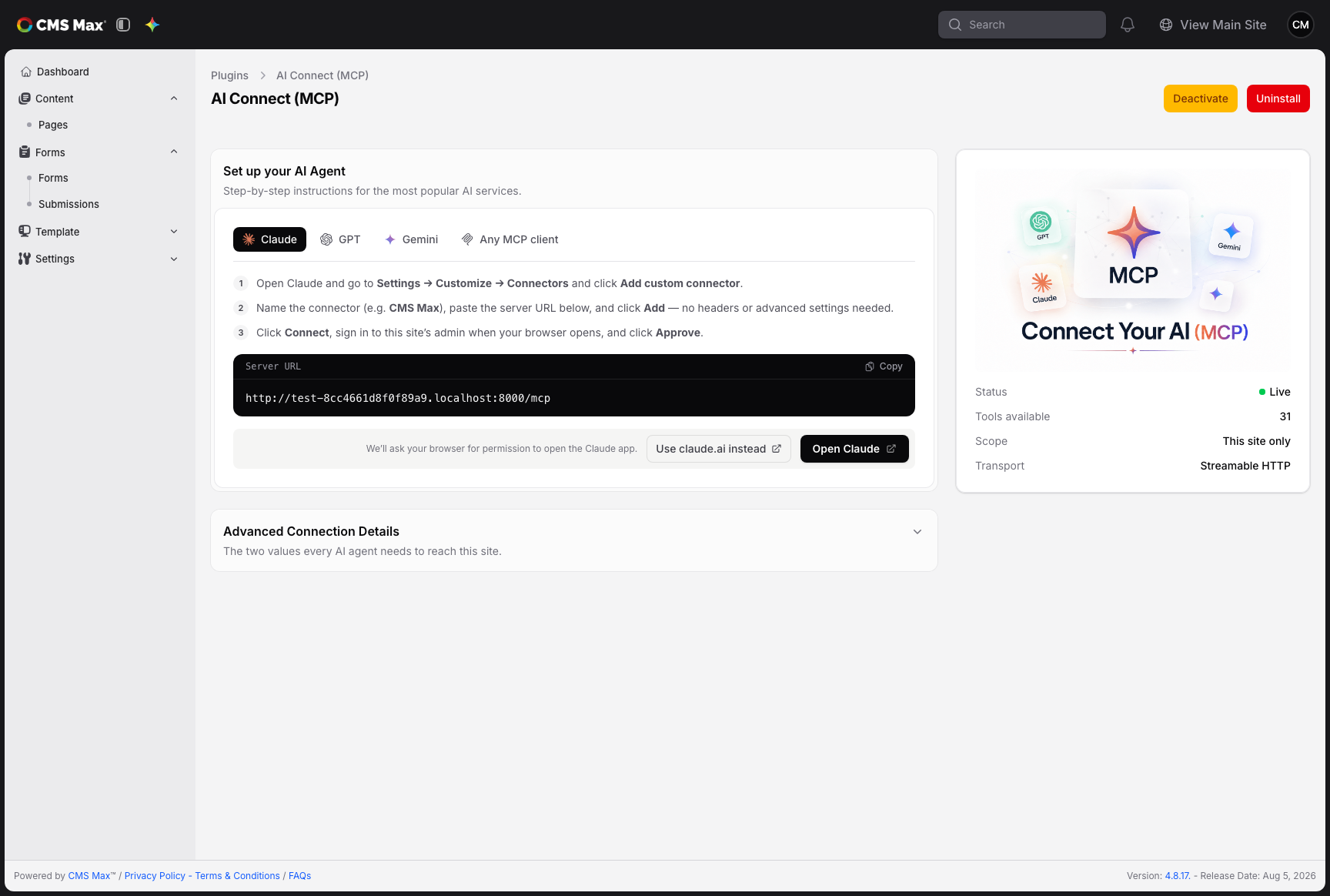
The Set up your AI Agent section on the plugin settings page walks you through it (Claude tab):
- Copy the Server URL shown under Connection details — that's all Claude needs.
- Click Open Claude (or open claude.ai → Settings → Customize → Connectors).
- In Claude, choose Add custom connector, give it a name (e.g. CMS Max), paste the server URL, and click Add — no headers or advanced settings needed.
- Click Connect. Your browser opens this site's admin login — sign in and click Approve to grant Claude access.
- In any chat, open the + menu and enable the connector. You can now ask Claude to build and edit your site.
No token to paste — that's intentional. Clicking Connect signs you in through this site's admin and asks for your approval, so access is granted securely without copying secrets. The Authorization header shown under Connection details is still there for any other MCP-capable client.
Connecting other agents
Open the plugin settings page and pick your agent under Set up your AI Agent. Guides for
GPT and Gemini are coming soon. Every other MCP-capable client (Claude Code, Codex,
Gemini CLI, VS Code, and more) connects through the Any MCP client tab, which shows the
server URL, the Authorization header, and a ready-to-paste mcp.json example.
Managing your token
- The token behaves like a password: anyone holding it can manage your site content. Keep it private.
- Regenerate it anytime from the plugin settings page. The old token stops working immediately, and every connected agent needs the new value.
- Every agent request is rate-limited, so a runaway agent can't overwhelm your site.
- The token is managed by the plugin, so it can't be accidentally revoked or deleted from the Settings → API page while the plugin is installed.
The sparkle button
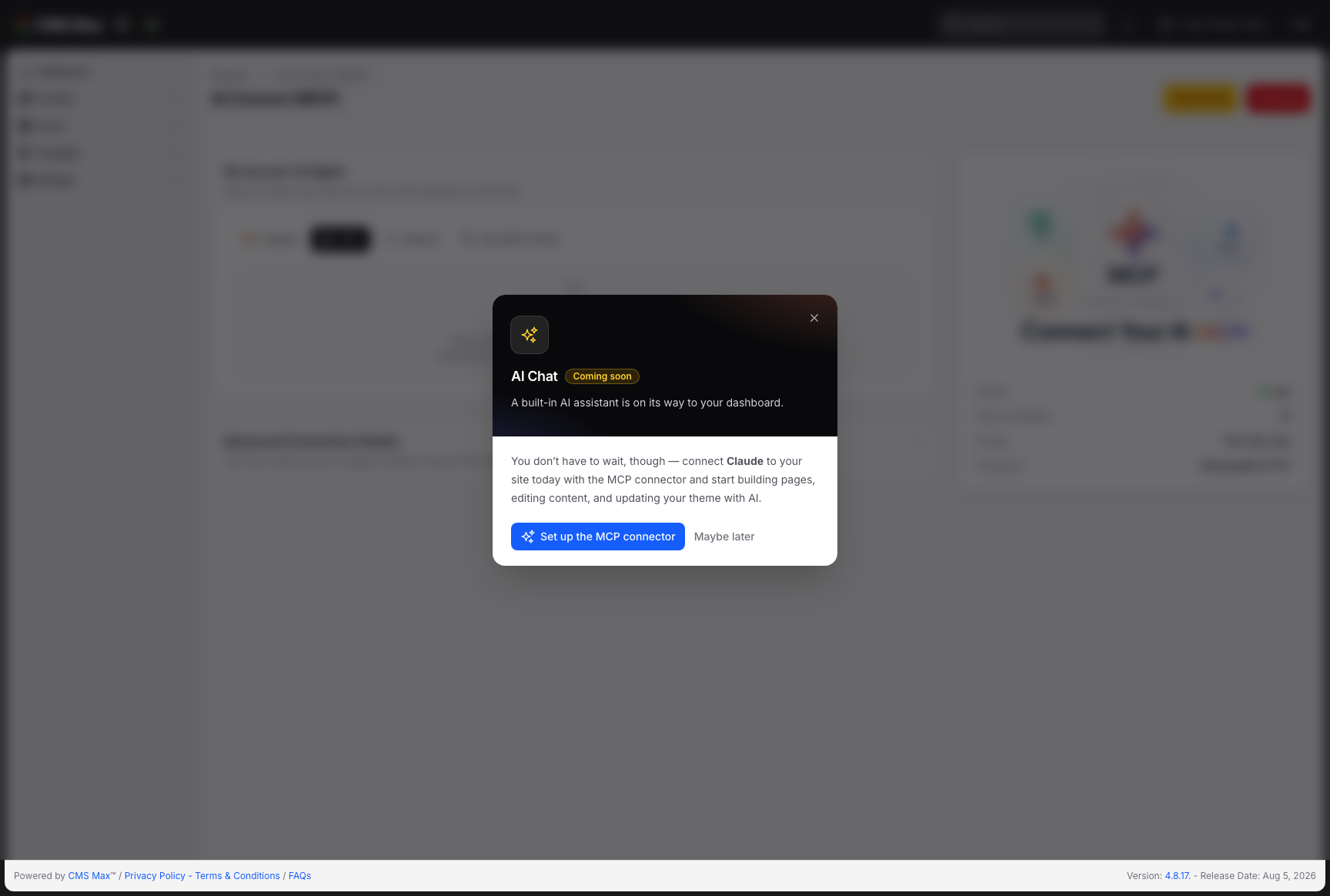
The sparkle icon in the top-left of your admin panel previews the upcoming built-in AI Chat. Until it arrives, the dialog links you straight to this plugin so you can already work on your site with AI through Claude.
Deactivating and uninstalling
Deactivating the plugin pauses every agent connected through Connect (the approve-in-browser flow) — reactivating lets them resume without reconnecting. Agents connected with the token keep working while the plugin is deactivated; regenerate the token or uninstall to cut them off.
Uninstalling the plugin revokes the connection token and every Connect approval immediately and disconnects all agents. Reinstalling later requires each agent to connect again. Your site content is not affected either way.